Tag: wordpress

  • WordPress vs Tumblr (2023) — Which One is The Best?

    On the surface, the blogging platform landscape looks the same as it did 10 years ago. The same big names still dominate it: Blogger, Tumblr, and WordPress. Beneath the surface, however, almost everything has changed. All three platforms have grown up and transformed into something unique.

    WordPress has outgrown its blogging roots and has become the dominant content management system and website-building software on the web. It’s largely considered the platform for “serious” bloggers and website owners. Blogger (a free Google add-on service) has remained focused strictly on facilitating the act of blogging. It continues to target a general audience who wants a free and extremely easy way to publish blog posts. One that requires the bare minimum of technical know-how. As a result, it remains popular with that audience. Tumblr, on the other hand, has had a more interesting journey.

    Tumblr’s Content and Monetization Woes

    When it launched in 2007, Tumblr was more than a blogging platform. It was a blogging platform designed for a specific type of blogging called tumblelogging or microblogging. Much like Twitter with “tweets”, the unique formatting of Tumblr posts and feeds is essential to the experience.  Tumblr was both hosted and free, which meant monetization was tied to how people behaved once on the platform. This is instead of charging users for access to it or features/content on it.

    Naturally, advertising was meant to make all this possible. And at first, it did. Unfortunately, liability around adult content forced a tug-of-war between advertisers, Tumblr, and Tumblr users that would nearly destroy the platform.

    The content policy demand made it impossible for some of Tumblr’s most active users to keep content on the platform. This triggered a mass exit of users. Tumblr’s value plummeted, and it changed hands from Yahoo!, which had purchased it in 2013, to Verizon Communications in 2017, when they acquired Yahoo! After a few lackluster years as part of Verizon, Tumblr was sold again in 2019. This time to none other than Automattic, the company behind their direct competitor, WordPress.com.

    The Repercussions of Tumblr’s Acquisition by Automattic

    In a very real sense, the acquisition of Tumblr by Automattic meant the end of Tumblr as an active competitor in the blogging arena. However, it also seems to have meant the salvation of a type of blogging experience that only Tumblr provides. Up to a point at least.

    Right now, there is no plan to roll back the “no adult content” policy originally implemented under Yahoo!. However, there are other changes ahead that may cure the platform’s monetization woes and allow it to become more valuable for its remaining users.

    The long-term plan for Tumblr seems to be for Automattic to convert the backend of Tumblr to WordPress while maintaining the unique user experience Tumblr has already established. While this may seem like a change designed to make things easier on the parent company, what this actually means is that all of the ways WordPress.com has been able to monetize over the years will be available to the Tumblr platform. It is unlikely to result in Tumblr becoming a market share competitor of WordPress in terms of blogs or websites, but it will make the long-term viability of tumblelogging a reality for users and content consumers who prefer that experience.

    WordPress vs. Tumblr: as Blogging Platforms

    In this article, we’ll be comparing WordPress and Tumblr in a slightly different light than we might normally compare competing companies. Since they’re both owned by Automattic, they’re no longer competitors but rather complimentary products that offer different user experiences. We’ll do our best to highlight those differences so you can choose the best platform for your blog.

    WordPress vs. Tumblr: Ease of Use

    When looking for blogging software that you will be using regularly, making sure that you like (or at least don’t mind) how it feels is pretty important. Both Tumblr and WordPress have drastically different user experiences (UX), but outside of their individual quirks and unique features, neither platform has a terribly high learning curve.

    WordPress

    Learning WordPress can be intimidating. While the world’s #1 CMS is decently user-friendly, the learning curve is somewhere in the middle. The user interface (UI) is functional but not always intuitive. And the number of features at your disposal from the beginning can be overwhelming (especially with onboarding messaging being pretty sparse).

    However, after some trial, error, and various Google searches, you will be flying through the WordPress admin dashboard like a pro.

    The post editor for WordPress has changed over the years, but the most recent version is the Gutenberg Block Editor. It gives you full control of your content, with each element being its own block that you can manipulate individually.

    wordpress vs tumblr

    You can also adjust the Post Format in the right sidebar, which will alter the composition and design of your post to adequately match whether it is primarily an audio post, video, gallery, and so on.

    wordpress vs tumblr post format

    Keep in mind, however, that because of the ultra-customizable nature of WordPress, these post formats will differ based on the theme you have chosen. Some themes may use the video in place of the featured image or use a pre-styled audio player. Some themes may not even make use of this feature, meaning every post uses the same template regardless.

    All of this to say, once you learn how to use WordPress to create the content that you want and find the right theme for your style of content, the creation is a breeze. You get tons of control, and as many options as your theme and plugin setup allow for. But it comes at the price of a slightly cumbersome dashboard that takes a bit of time to get used to.

    Tumblr

    Tumblr, on the other hand, is the epitome of intuitive. From the moment you log into your dashboard, the options for publishing are all right there. While the editor and platform may be a bit less powerful overall than WordPress, the ease of use and learning curve are certainly better.

    wordpress vs tumblr dashboard

    Because Tumblr is as much a social network as it is blogging software, the top nav bar contains notifications and messaging links. As well as a New Post button. And just below that, a series of icons gives you immediate access to each kind of post that you can make. It doesn’t get a lot easier than that, really.

    For a head-to-head comparison, the text-post editor in Tumblr is much simpler than the one in WordPress. It can’t do quite everything the WP editor can, though.

    tumblr post editor

    That said, you can do a lot with a simple Tumblr post. In the image below, you can see each paragraph is separate, images are put in-line, and then each new line break has the full media insertion list of icons, where you can also include audio, video, links, etc. in the post.

    wordpress vs tumblr editor

    This is the traditional blog post creation. Notice at the bottom where it says #add tags. This is where you would choose the tags that allow the post to show up in other people’s feeds. Maybe the steepest learning curve on Tumblr is figuring out the right tags to meet the right people. And how to reblog and become a part of the community. But the actual act of doing so is easy to do.

    WordPressTumblr
    Ease of UseWordPress can take some time to learn, plus the seemingly endless features might be overwhelming at first. 🥇 Winner
    Tumblr is ultra intuitive, anyone with experience with social media will be able to pick it up instantly.
    Choose WordPressChoose Tumblr

    WordPress vs. Tumblr: Customization

    WordPress has made its name by being customizable. Tumblr, on the other hand, doesn’t really come to mind when you think of custom websites. And for good reason, the customization options on WordPress vs. Tumblr are night-and-day different. However limited they are, Tumblr gives you many more options as, say, Medium. To be fair to the platform, however, very few services offer as much customization and control over your site as WordPress.

    WordPress

    There really isn’t any doubt that WordPress is the victor in a head-to-head comparison of customization options. Between the WordPress.org theme and plugin repositories, the open-source code itself, and the thriving third-party extension industry, if you want something on your WordPress site, you can get it.

    Or maybe, more importantly, you can do it. Users can implement any changes they want on their site. You can dig into the code and alter anything you want (given you have the experience and skill to do so). You can choose what theme you use and how it works. Any feature can be added through plugins, of which you have thousands of choices.

    The main challenge in learning WordPress is discovering the ideal themes and plugins. Thankfully, we can help you with that. We have an exhaustive library of posts to help you choose the best form plugins, some great options for social media integration, popular SEO plugins, as well as WooCommerce and blogging themes to help get you started.

    Depending on the theme you use, however, the ease of customization differs. The default way to adjust themes is in what’s called the Theme Customizer. The options contained there differ from theme to theme, but in general, you get basic color and typography settings, as well as a space for custom CSS.

    wordpress theme customizer

    Themes such as Divi and other popular page builders give even more granular control over customizations. Rather than digging into PHP files to create templates or write them in HTML, visual builders give real-time adjustments and settings and feature drag-and-drop placement of elements.

    divi theme builder

    Divi and some other builders also give you the option to fully customize each and every aspect of your site, even allowing for individual templates for specific categories, post types, search results, and anything else. All of this is built into the WordPress core. But you need requires JavaScript and PHP knowledge to take advantage of that.

    But because of the healthy development industry around WordPress, customizing your site can be limitless. You just have to find the theme and plugin combination that suits you the best.

    Tumblr

    Tumblr, on the other hand, is a far more limited platform for customization. And that’s okay. As a platform, Tumblr isn’t designed for customization. Nor would having major site customization increase usability. Unsurprisingly, you can find an Edit Appearance entry on the main menu, and it looks not dissimilar to the WordPress theme customizer.

    tumblr customization options

    You can change header images, show avatars, update the title and description, and add/remove features such as endless scrolling, visible navigation, sliding header, and so on. You can also add a new page to the site from here, which can be useful if you need an About Me page or something similar. Your primary URL is going to be a feed of your posts, but Tumblr blogs do have nav menus built in.

    If you want a different look, you can always head to the Tumblr theme repository, which is very useful. It isn’t nearly as robust as the WordPress one, but again, it’s not meant to be. If, however, you want your Tumblr blog to appear more traditionally (such as with a feed and sidebar, and author bio), these themes are the best way to do it.

    Finally, you can also adjust how the user dashboard appears, too. In the dropdown for your account settings in the header bar, a Change Palette link will cycle between 12 different color schemes for your dashboard.

    color palette changes

    From a Matrix-style green-black computer theme called “Cybernetic” to the pictured “Goth Rave”, you’ll be able to find some combination that works for you.

    WordPressTumblr
    Customization🥇 Winner
    WordPress is the clear winner in customization due its vast library of plugins and themes.
    You can make some minor customization changes easily, but Tumblr just doesn’t compare to WordPress.
    Choose WordPressChoose Tumblr

    WordPress vs. Tumblr: Social

    We would be remiss if we didn’t touch on the social aspect of these platforms. Whether it’s integration with social media and community building or maintaining a close network of contacts and readers, both WordPress and Tumblr have big social aspects. They’re just very, very different.

    WordPress

    As we mentioned in the above section on Customization, you can find a plugin or theme that integrates any feature you can think of. In terms of social experiences, some of the standouts in the WordPress ecosystem are membership sites and forums using plugins such as MemberPress, bbPress, or BuddyPress. You can even build community by gamifying your content and bringing people together through bite-sized dopamine hits.

    You can also use the Jetpack plugin to tie into WordPress.com accounts which will allow users to Follow and Like your blog posts. Though, to be honest, this is a very underutilized feature by most people. It’s a pale competitor to the blogging/reblogging system on Tumblr. But the “Following” option is great for those who want a built-in contact/email list.

    wordpress follows

    Additionally, the block editor will use any connection you’ve made to social networks and automate sharing whenever you make a new post.

    wordpress social

    By default, you can make this a final check to customize before scheduling or publishing. And none of this includes the typical WordPress comment system, where people can simply leave messages on your content. And even that can be customized with other, more social systems such as Disqus.

    Tumblr

    Within a short time of your beginning to use Tumblr, you will definitely see the social aspects baked into the platform. As we’ve said, Tumblr is as much a social network as it is a blogging platform. On each and every post, four icons appear.

    tumblr icons

    They’re relatively universal in what they do, making using Tumblr’s social tools very easy.

    • Message
    • Comment
    • Reblog
    • Like

    On top of that ease, each post within a feed or on a page has this same collection of icons to make sharing and reblogging incredibly easy.

    tumblr icons in the feed

    Reblogging is simply putting someone else’s content on your page, sometimes with a comment and sometimes not. It’s the precursor to Twitter’s Retweeting and Quote Tweeting. When reblogging content, it’s important to note that your content, as well as the original content, will show up in any tag feeds included. So you can add your own, which will increase the viral spread of the content.

    social network sharing

    If you just want to share your content or anyone else’s, the Message arrow also includes the most popular social networks. All of this combine to make Tumblr an incredibly social platform that’s built on the premise of sharing content freely among a community. You can absolutely do a traditional blog using Tumblr, but if you do, keep in mind that the social aspect is still important. Your audience will come primarily from the community of other Tumblr users.

    WordPressTumblr
    SocialWordPress can be made into an effective social media platform with a few plugins or setting changes.🥇 Winner
    Tumblr is designed to be a social platform as much as a blogging platform.
    Choose WordPressChoose Tumblr

    Wrapping Up WordPress vs. Tumblr

    WordPress and Tumblr are two very different products in the end. WordPress is an amazing content management system and blogging platform. It is best used by those who want complete control over their sites. Tumblr works more like a traditional social platform but can’t function as a CMS. Both are suited for long-form content as well as short.

    WordPressTumblr
    Ease of UseWordPress can take some time to learn, plus the seemingly endless features might be overwhelming at first. 🥇 Winner
    Tumblr is ultra intuitive, anyone with experience with social media will be able to pick it up instantly.
    Customization🥇 Winner
    WordPress is the clear winner in customization due its vast library of plugins and themes.
    You can make some minor customization changes easily, but Tumblr just doesn’t compare to WordPress.
    SocialWordPress can be made into an effective social media platform with a few plugins or setting changes.🥇 Winner
    Tumblr is designed to be a social platform as much as a blogging platform.
    Choose WordPressChoose Tumblr

    However, in the end, the choice between the two platforms comes down to audience and intent. If you’re about social sharing and being part of a community, Tumblr is the way to go. If you’re more traditional in use and need e-commerce or massive search traffic, it’s WordPress.

    WordPress Deep Dive

    One more thing. Before you make your final decision on your website platform…are you curious to see how WordPress stacks up against its other biggest competitors? We did the hard work and compared WordPress vs. everything else so that you don’t have to! We, for instance, compare WordPress vs. Google Sites, and I think you will be interested to see the results.

    If you’re looking for a way to integrate social media with WordPress, we recommend spotlight or 10Web to help you get started.

    What do you think about WordPress vs. Tumblr? What have been your experiences?

    The post WordPress vs Tumblr (2023) — Which One is The Best? appeared first on Elegant Themes Blog.

    Go to source

  • WordPress vs Joomla (2023) — Which is Better?

    WordPress isn’t the only modular content management system (CMS) that has an established base and active community. Joomla is also a free-to-install, open-source platform that thrives on its third-party support. Many developers work to extend their capabilities beyond what comes built into the base software. When taking a look at WordPress vs. Joomla, you will see several functionality differences, as well as user experience and technical requirement differences.

    In this post, we’ll compare WordPress to Joomla, so you can decide which one will work best for you!

    WordPress vs. Joomla: Who Are They For?

    WordPress does its very best to be the jack-of-all-trades CMS. What we mean is that anyone who needs a website can build it with WordPress. And generally, with minimal experience. It might not be the most advanced website out there, but the tools are easily accessible and understandable by anyone through various third-party plugins and themes.

    Users will find a mild learning curve with WordPress, but it doesn’t take long to get beyond that. You will quickly find yourself using posts, pages, themes, plugins, and widgets like a pro. Users who have never had a website before can feel relatively confident in having a nice-enough WordPress site built without too much trouble.

    Joomla, too, is a be-everything-to-everyone CMS. Its development history is much different than that of WordPress, especially in that it was created to be a full-site CMS from the beginning. WordPress began as blogging software, so features and updates are still built on that foundation. Both are built on PHP, but Joomla users (especially developers) have a much more traditional foundation in that Joomla can be used out of the box with straight HTML, CSS, JavaScript, and PHP without having to learn the “WordPress way” of doing things.

    That said, Joomla does feel like a CMS that beginners would have a good time using. The backend interface is clunky, and the terminology and messaging for new users (inside Joomla itself) are barebones. Installing modules and getting things in working order is far more technical than WordPress. For those with tech and website experience, though, there’s a lot of freedom to be had in Joomla.

    WordPress vs. Joomla: Ease-of-Use

    While WordPress has a moderate learning curve for new users, the core of the experience is based on blogging. This means that nearly every feature can be boiled down to creating a post or page in some manner. Themes and plugins simply expand on that functionality. Joomla has always been a CMS meant for site developers, meaning that new (non-technical) users would have a greater learning curve. For those with a background in traditional computer science and web development, Joomla may even have a smoother learning curve than WordPress.

    WordPress

    WordPress is easy to use. The admin dashboard is straightforward in most ways, highlighting the main areas of focus (Pages, Posts, Media, and so on) in the left-hand sidebar.

    wordpress vs joomla

    You do have to learn where certain elements are, such as various settings, tools, and menu editing. But in general, once you learn where those are and how to access them, the interface is relatively intuitive.

    One of the more difficult aspects of using WordPress is making sure that you have the right suite of plugins to complement your theme. There are thousands of free themes and plugins in the WordPress.org repositories and even more premium options, such as Divi, available from third-party developers.

    Making the right choices—and even knowing which choices are necessary—can take a little figuring out. If you’re just getting a feel for WordPress, you might not know what features your site needs and which plugins and themes can provide those. All of that becomes much clearer and simpler once you’ve spent just a little time using the platform and doing some outside research.

    For typical users, most WordPress features can be carried out with just a few clicks. Since the base of the platform is based around posts and pages, the basic workflow becomes familiar very quickly, with only a few variations depending on the task.

    Joomla

    We’d like to say that Joomla has the kind of quick-to-learn workflow that WordPress offers. But that’s just not the case. At least for many users. If you’re an average web user who is looking to set up a new website, Joomla might not make a whole lot of sense at first. (And for a good while after that.) If you’ve built and/or coded websites before, Joomla shouldn’t be that hard to pick up.

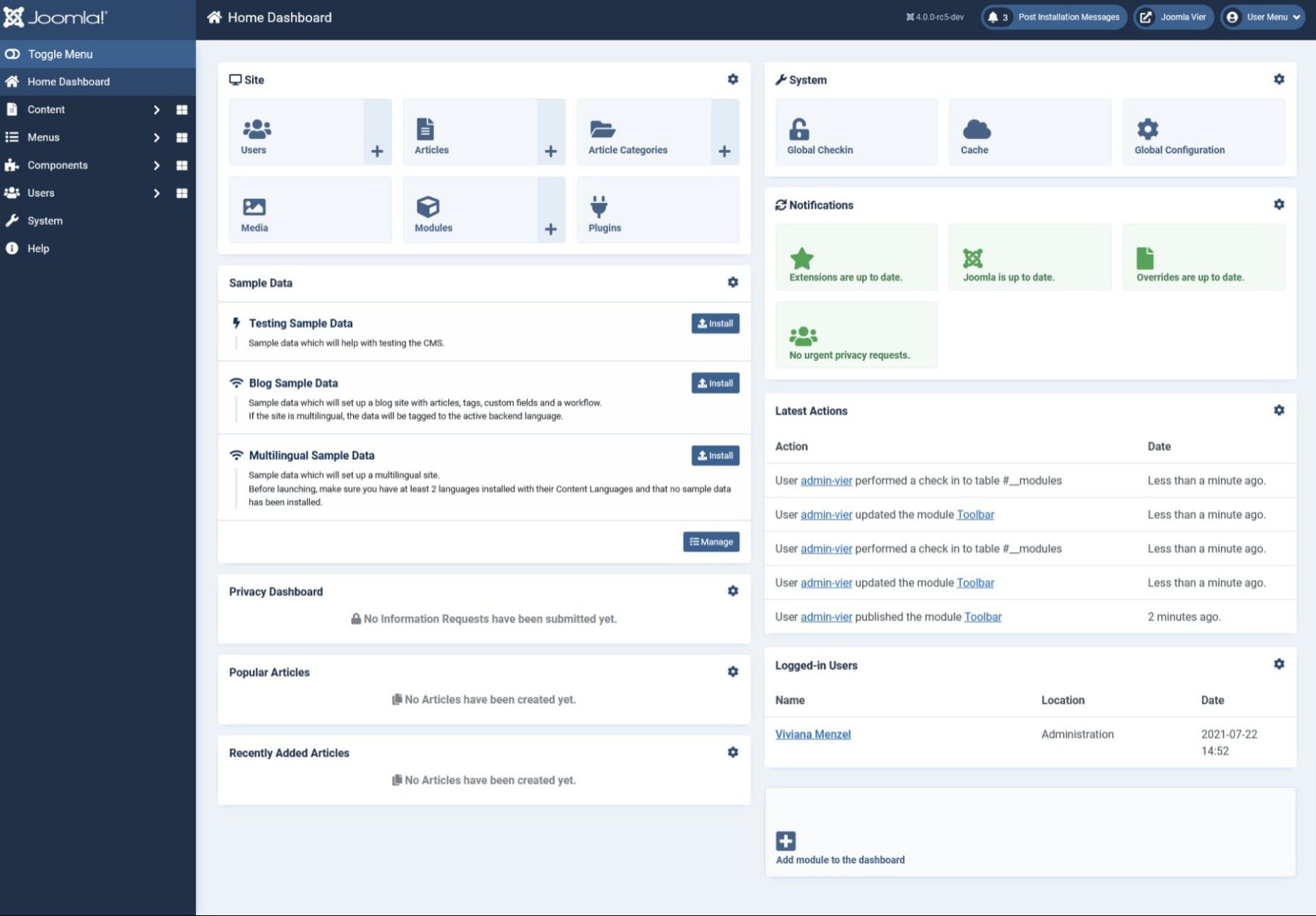
    The backend, though, is not intuitively put together. Joomla’s admin panel does have a quick-menu sidebar to the left, like WordPress. But most of the features and utilities live on the top menu, and you access those via dropdown.

    joomla admin

    Additionally, on installation, you will be asked if you would like to import blog sample data. We recommend that you do. That’s where you will find most of the new-user orientation material set up as content on your new site.

    joomla content

    Having any new-user content being an optional import as sample data is just weird. It is not an intuitive way to introduce someone to the Joomla platform. At all. However, the Joomla community has some fantastic training content with which you can learn Joomla.

    With the time we’ve spent learning and exploring Joomla, it never really became smooth and second nature to perform any tasks. The menus in Joomla do make sense (unlike WordPress), but navigating through them is frustrating. You can’t click a new menu item until you’ve closed the current one.

    All-in-all, Joomla’s not that easy to use. It is developer-friendly, for sure, but not end-user friendly at all.

    Ease-of-Use Comparison

    WordPress
    Ease-of-Use🏳 Draw

    WordPress is relatively easy to use and most users will be acclimated within just a few minutes. However, the advanced features will take much longer to master.
    🏳 Draw

    Joomla’s primary focus is on more advanced technical user, so it has a larger learning curve.
    Choose WordPressChoose Joomla

    WordPress vs. Joomla: Customization

    WordPress thrives on customization. Extensibility via plugins and themes allows for unlimited choices in terms of design and feature sets. Even a user with no technical experience can start a WordPress website and have it look more or less professional without a lot of hassle. Joomla, too, is built around customization. But not for the end-user. If you’re a content creator or site owner without a great deal of technical expertise or design experience, Joomla’s customization options may be both confusing and near-impossible to decode.

    WordPress

    Through plugins and themes, WordPress can be whatever you need it to be. You can add e-commerce features with a few clicks. You can install a new page-builder tool for more advanced options over the Gutenberg editor. And each theme you install comes with its own unique set of customization options. Most of the time, these are consolidated into the built-in Theme Customizer.

    wordpress customize

    Users with more advanced skills can add CSS through this page, or they can delve into the core WordPress files and edit the PHP directly. The file structure is designed so that any customizations are held separately in a child theme so that the base you’re customizing is always there to go back to.

    In that way (and many others), WordPress encourages poking and prodding and seeing what is the best fit for your site. Try on different themes, widgets, and plugins to add features and design to see what works and what doesn’t. Resetting things back to as they were only taking a few clicks, regardless.

    Joomla

    Joomla is also an incredibly customizable platform. It, too, has hundreds of templates and themes, and extensions to install to customize your site. You can download them from the official Joomla repo that is directly accessible from the dashboard. Both design and functionality add-ons can be found in the same place, separated by category.

    joomla customization

    Installing them doesn’t take more than a few clicks. You can then navigate back to the admin dashboard to enable and adjust their settings.

    And while you do have every bit as much freedom as you do in WordPress, the Joomla options and customizations are generally less user-friendly and more complicated to get right. Placing them on the site often has you choosing a “position” number that has no human-readable name. With that and because of how the content on the site is displayed, it takes some real time to get things displayed where you want. Not to mention actually testing and implementing features and utilities.

    Joomla has a ton of power under the hood, and you can customize it however you want. But you will definitely work for it using Joomla vs. WordPress.

    Customization Comparison

    WordPress
    Customization🥇 Winner
    You can’t really compare to WordPress when it comes to customization. It’s what they’ve built their platform on and it requires little technical knowledge to integrate.
    Joomla has a lot going for it in terms of customizability. But, it takes more technical experience to fully take advantage of the options available.
    Choose WordPressChoose Joomla

    WordPress vs. Joomla: Publishing

    The internet is about content. And your website is about displaying your content. So we have to touch on what your experience will be in terms of content creation and publishing using WordPress vs. Joomla.

    WordPress is a blogging platform at heart. It’s built to win this head-to-head from the beginning. It’s simple and intuitive. Anyone can publish to their site’s feed without hassle or add a static page just as easily. Joomla, on the other hand, isn’t made solely for publishing regular content. And it shows. Every page, post, and note on your Joomla site is contained under the header of Articles. This kind of obfuscates the publishing process enough that it’s just not a pleasant experience.

    WordPress

    WordPress 5.0 introduced the block editor. Replacing the classic WYSIWYG editor, content creators can now control options and settings for every paragraph (even sentence if they so choose), image, gallery, or embed on the site. While the block editor is not everyone in the WordPress community’s favorite new feature, the interface is slick, simple, and new and old users tend to like using it to create content. Both in terms of blog posts and static pages.

    wordpress editor

    With various post types delineated in function and separated within the interface, it’s easy to understand what you’re creating and how to use it. Posts are for regular content. Pages are for static content that won’t enter the feed. You can use Custom Post Types to add features like Products to plugins like WooCommerce.

    The entire process is simple and understandable within WordPress itself. The Add New button under Posts brings you to the editor, in which the placeholder text explains what to do, and a big, blue Publish button sits up top. In that same window, you have the option to adjust that content’s permalink and meta information.

    Joomla

    In Joomla, creating content is technically as easy as it is in WordPress. The publishing editor Joomla uses is TinyMCE, which is the same editor that WordPress used until version 5.0. So anyone with familiarity there (or with other WYSIWYG editors) will feel right at home.

    Joomla editor

    Like WordPress, you can edit your permalink here (called an Alias in Joomla), tags for your article, whether the article shows up as featured on your site, and various other permissions and options such as access levels and meta-data display.

    One of the more confusing and confounding parts of the Joomla publishing process is that you press the same button (Add New Article) in the header menu to be taken to this same editor to create both regularly updated blog content (such as Posts in WordPress) and static pages (Pages in WP). The Category feature in Joomla is what keeps these separate.

    Depending on the modules and extensions your site has installed (which we mentioned in the Customization section above), the category you choose dictates where this content appears.  And they’re all created and managed from this single tool. This is incredibly powerful. And it’s actually pretty simple. But it’s a headache to use in practice, as setting up a site with the right categories to match all the content to match all the modules is not as simple as, for instance, WordPress taxonomies.

    For sites that aren’t publishing regular content (or using a different platform for that), Joomla’s publishing tools may be just what you need to keep things organized.

    Publishing Comparison

    WordPress
    Publishing🥇 Winner
    WordPress is built for bloggers and content creators to publish their work quickly. Their interface is tried and true.
    Joomla’s main goal isn’t centered around writing, so it’s no wonder that their publishing work flow isn’t as well-rounded as WordPress. Still, once you get used to it, it’s not a bad solution.
    Choose WordPressChoose Joomla

    The Verdict

    In the end, we feel that WordPress vs. Joomla comes down to the tech experience of the end user and what kind of site they need. For new site owners with no website experience, WordPress is by far the winner of this head-to-head. It does everything, and the learning curve is much lower. Plus, the ecosystem and third-party support are phenomenal. Everyone, from new users to veteran developers, can dig into WordPress and find their niche.

    Final Comparison

    WordPress
    Ease-of-Use🏳 Draw

    WordPress is relatively easy to use and most users will be acclimated within just a few minutes. However, the advanced features will take much longer to master.
    🏳 Draw

    Joomla’s primary focus is on more advanced technical user, so it has a larger learning curve.
    Customization🥇 Winner
    You can’t really compare to WordPress when it comes to customization. It’s what they’ve built their platform on and it requires little technical knowledge to integrate.
    Joomla has a lot going for it in terms of customizability. But, it takes more technical experience to fully take advantage of the options available.
    Publishing🥇 Winner
    WordPress is built for bloggers and content creators to publish their work quickly. Their interface is tried and true.
    Joomla’s main goal isn’t centered around writing, so it’s no wonder that their publishing work flow isn’t as well-rounded as WordPress. Still, once you get used to it, it’s not a bad solution.
    Choose WordPressChoose Joomla

    Joomla, on the other hand, caters very heavily to the experienced developer. Nowhere near as user-friendly as WordPress, Joomla gives you complete control over the entirety of your site. And it does so in the standard way, not the “WordPress Way.” For someone coming out of a boot camp or computer science program, Joomla may be where you feel more comfortable because it is definitely a more utilitarian platform. For content creators who will be using it daily to push out news or blogs, Joomla isn’t the best. But for sites not using it to create new content and run by developers, Joomla has a lot to offer. If you can find out how to do it.

    WordPress Deep Dive

    One more thing. Before you make your final decision on your website platform…are you curious to see how WordPress stacks up against its other biggest competitors? We did the hard work and compared WordPress vs. everything else so that you don’t have to! One of the comparisons we’ve done is WordPress vs. Drupal, and I think you will be interested to see the results.

    If you’re looking for specific plugins to help WordPress become even more powerful, we recommend the following:

    What have been your experiences with WordPress vs. Joomla?

    The post WordPress vs Joomla (2023) — Which is Better? appeared first on Elegant Themes Blog.

    Go to source

  • WooCommerce vs Adobe Commerce (2023) — Let’s Compare

    WooCommerce and Adobe Commerce are two popular e-commerce platforms available today. They both have their unique strengths and are suitable for different needs. While WooCommerce is a plugin for WordPress, Adobe Commerce is a standalone product, formerly known as Magento. They are supported by their strong communities, with WordPress users favoring WooCommerce and Adobe advocates supporting Magento. In this post, we’ll compare WooCommerce vs Adobe Commerce to help you decide which platform is best for your business.

    Similarities of WooCommerce vs Adobe Commerce

    WooCommerce and Adobe Commerce are both open-source products, meaning that the original code is freely available for anyone to modify or build on to create a customized product. The vast communities that support these products are due in part to the culture of sharing that open-source software fosters.

    One of the reasons WooCommerce and Adobe Commerce have such large communities is that open-source software creates an appreciation of sharing. Developers go on to share their versions of the open-source software to carry on this aspect of giving.

    WooCommerce community

    As a new business owner, using open-source products like WooCommerce or Adobe Commerce means that you can take advantage of a free initial product and the support of a large community. However, it’s worth noting that with Adobe Commerce, unless you’re willing to pay a high price or use a hosting provider with one-click installs, you’ll need a good understanding of command-line installation and coding to get the platform up and running. This is not the case with WooCommerce, which is a plugin for WordPress and can be easily installed with a few clicks.

    How Easy is Set Up and Use?

    Starting an e-commerce business can come with its own set of challenges, but you don’t want the platform you choose to be one of them. If you’re already using WordPress and want to add e-commerce functionality to your site, it makes sense to choose the WooCommerce plugin. This way, you won’t have to get used to a new interface or migrate your site to another platform.

    However, when comparing WooCommerce vs Adobe Commerce, one important factor to consider is the ease of use. While WooCommerce is easy to install and set up, Adobe Commerce may require more technical knowledge and experience, particularly when it comes to customization and advanced functionality. It’s important to evaluate your skill level and the needs of your business to determine which platform is the right fit for you.

    WooCommerce Set Up

    WooCommerce documentation

    WooCommerce is a great option for beginners, even if you don’t have a WordPress site yet. This is because WordPress is very user-friendly and WooCommerce is an extension of it. There are numerous plugins available for customization through WordPress, including options from Yith and other providers. In addition, WooCommerce provides extensive documentation to help with the setup process.

    Adobe Commerce Set Up

    Adobe Commerce e-commerce platform

    Adobe Commerce, being built on Magento, requires web development knowledge to get started. Like WordPress, it requires a hosting environment built on Apache or Nginx, as well as PHP and MySql. However, to install Magento, you’ll need to either use the command line interface, which may be overwhelming and frustrating for beginners, or research hosting providers that simplify the process.

    Once set up, Magento’s interface is user-friendly and supported by tutorial videos and documentation. It also includes a full installation wizard. However, adding extensions to your site can be challenging, and may require the expertise of a Magento-specialist developer or personal effort.

    Therefore, when it comes to ease of use, WooCommerce vs Adobe Commerce is the clear winner.

    WordPressAdobe Commerce
    Ease of Use🥇 Winner

    WooCommerce is as simple to set up as WordPress, with a simple walk though set up wizard.
    Unless you have strong dev skills or a host that offers set up, Adobe Commerce is difficult to install, requiring command line interface.
    Choose WordPressChoose Adobe Commerce

    What are the Associated Costs of WooCommerce vs Adobe Commerce?

    Both e-commerce platforms are free to download and start building your shop but to grow your business, you may need more payment options beyond PayPal and bank transfers, which can cost additional fees.

    WooCommerce

    WooCommerce extensions

    WooCommerce has limited basic options, so you need to buy plugins and extensions, which can add up. There are many options available, including some free ones, but if you want a unique shop, you’ll need to spend money or do some coding.

    Divi by Elegant Themes

    Thanks to themes like Divi, creating a beautiful online store is easy using the Visual Builder to customize colors, fonts, and more. You can find some great child themes through the Divi Marketplace, such as Divi Ecommerce, which provides everything you need for a stunning online shop that can be set up in a matter of minutes.

    Adobe Commerce

    With Adobe Commerce, you’ll find it necessary to add extensions to both e-commerce platforms, which will require additional costs as your business grows. While WooCommerce offers a wide selection of free and paid plugins, Adobe Commerce’s extensions are pricier, and you’ll need a Magento specialist to install them correctly. Additionally, finding a Magento developer is harder than finding WordPress developers.

    Overall, WordPress is more user-friendly and easier for individuals with varying levels of experience, while Magento would require more time and expertise to set up and manage.

    Hosting Considerations

    When it comes to hosting, it’s important to consider that while WooCommerce can run on WordPress hosting, Adobe Commerce requires more advanced hosting options like dedicated servers or cloud plans. Cloudways is a recommended provider for Magento users, and their one-click install makes it easy to set up your website. If your product portfolio grows, you may need to upgrade your hosting to ensure your website runs smoothly.

    When deciding between WooCommerce vs Adobe Commerce, it’s important to consider your long-term goals and budget. While the initial costs of setting up both platforms are low, it’s important to think about your future needs. Do you require the advanced features of Adobe Commerce, or will WooCommerce suffice? If you anticipate needing those features, it may be worth investing more money upfront rather than having to migrate your site to Adobe Commerce later on. Keep in mind that Adobe Commerce hosting plans are expensive, costing over $1000 per month. However, if you’re a large company with the budget to invest in it, it could be a wise choice.

    WordPressAdobe Commerce
    Associated Costs🏳 Draw

    WooCommerce can get pricey depending on how customized you want your online shop to be.
    🏳 Draw

    Adobe Commerce (Magento) is free, but installing extensions is expensive and may required developer assistance.
    Choose WordPressChoose Adobe Commerce

    Which is Better for Customization?

    Both WooCommerce and Adobe Commerce offer various customization options, but the level of customization needed will depend on your specific needs and preferences. For instance, to customize your website’s branding, you’ll need to unlock this ability through plugins or a developer’s time. It’s worth noting that being able to customize your site is only possible because both WooCommerce and Adobe Commerce are self-hosted.

    On the other hand, hosted solutions like Shopify allow you to quickly build an online store, but customization options are limited. Therefore, WooCommerce and Adobe Commerce are excellent options if you want to make your e-commerce shop truly unique.

    Additionally, when comparing WooCommerce vs Adobe Commerce, both platforms offer extensive customization options that allow you to tailor your online store to your specific needs. The level of customization required, however, may differ depending on which platform you choose.

    WooCommerce

    WooCommerce vs Adobe Commerce themes

    WooCommerce has many themes, both free and paid, that let you customize your site’s appearance. You can also find themes made by third-party developers, like Elegant Themes and Elementor, that are compatible with WooCommerce.

    WooCommerce supports various custom plugins, including payment and shipping provider plugins like Printify, to enhance its functionality. Developers can also use custom code and APIs to build custom integrations with third-party applications.

    Adobe Commerce

    Magento Marketplace

    Like WooCommerce, Adobe Commerce offers a variety of free and premium themes to customize your online store’s appearance. However, unlike WordPress, most of these themes are created by third-party vendors rather than Adobe itself. Additionally, the Magento Marketplace provides access to over 5,000 extensions that can enhance the functionality and appearance of your store. It’s worth noting that customization on Adobe Commerce may require more technical skill than it does on WooCommerce.

    Furthermore, with code customization, you can achieve incredible things on Adobe Commerce. Creating custom modules, extensions, and themes can add a unique flair to your online store.

    WordPressAdobe Commerce
    Customization🥇 Winner

    With so many third-party plugins and child themes available, there are no limits to customization with WooCommerce.
    While there are extensions and themes available, they are expensive and time-consuming. Therefore, most will opt for the simple look and feel of a basic Adobe Commerce site.
    Choose WordPressChoose Adobe Commerce

    Comparing Features

    With any e-commerce platform, you’ll need a shopping cart and the ability to upload and categorize products. You get these basic features with WooCommerce and Adobe Commerce. When comparing WooCommerce vs Adobe Commerce, which has more features to offer?

    WooCommerce

    WooCommerce is user-friendly and has basic built-in features like ratings and widgets, but advanced features need add-ons. It can also work with other WordPress plugins. The navigation is not as advanced as Adobe Commerce’s as it only allows filtering by one attribute.

    WooCommerce features

    WooCommerce offers easy-to-manage extensions through WordPress plugins, some of which are free. Popular examples include Rank Math for search engine optimization, Askimet for spam filtering, and Gravity forms for creating forms.

    Adobe Commerce

    Adobe Commerce offers cross-selling, up-selling, product comparison, discount codes, and advanced filters, making it a winner in this area. It also allows you to view multiple stores on the same account, which is useful for creating localized versions of your store.

    Google Analytics Integration

    Adobe Commerce and WooCommerce provide Google Analytics for business success assessment and product portfolio strategy. However, when it comes to features, Adobe Commerce has the better basic features, but you’ll need to invest more to improve your site.

    WordPressAdobe Commerce
    Features🏳 Draw

    WooCommerce offers plugins, custom code capabilities, and Google Analytics integration.

    🏳 Draw

    Adobe Commerce has advanced features for cross-selling, product comparisons, and discount codes right out of the box.
    Choose WordPressChoose Adobe Commerce

    WooCommerce and Adobe Commerce Alternatives

    Consider Shopify if you want an easy-to-use online store without many customization options. However, if you want more control over the looks of your store, you should check out our WordPress vs Squarespace comparison.

    WooCommerce vs Adobe Commerce: The Verdict

    Adobe Commerce is a preferred choice for larger businesses or agencies that manage e-commerce sites for their clients. It’s scalable, making it perfect for those with grand plans or an already successful online store. Adobe Commerce offers a few more basic features, and the extensions are excellent once they are installed by a developer. However, it’s worth noting that setting up this kind of store requires a significant budget.

    Final Comparison

    WooCommerce is a great choice for small businesses and those with limited development experience. As your business grows, add plugins like Rank Math and Yith to enhance customer experience on this platform with basic e-commerce functionality. WooCommerce is a simple way to sell products on your website if you’re familiar with WordPress or have an existing domain.

    WordPressAdobe Commerce
    Ease of Use🥇 Winner

    WooCommerce is as simple to set up as WordPress, with a simple walk though set up wizard.
    Unless you have strong dev skills or a host that offers set up, Adobe Commerce is difficult to install, requiring command line interface.
    Associated Costs🏳 Draw

    WooCommerce can get pricey depending on how customized you want your online shop to be.
    🏳 Draw

    Adobe Commerce (Magento) is free, but installing extension is expensive and may required developer assistance.
    Customization🥇 Winner

    With so many third-party plugins and child themes available, there are no limits to customization with WooCommerce.
    While there are extensions and themes available, they are expensive and time-consuming. Therefore, most will opt for the simple look and feel of a basic Adobe Commerce site.
    Features🏳 Draw

    WooCommerce offers plugins, custom code capabilities, and Google Analytics integration.


    🏳 Draw

    Adobe Commerce has advanced features for cross-selling, product comparisons, and discount codes right out of the box.
    Choose WordPressChoose Adobe Commerce

    WooCommerce’s integration with WordPress can benefit those familiar with the platform. Ultimately, the choice between WooCommerce vs Adobe Commerce comes down to the specific needs of your business and your budget.

    Article thumbnail image by IdeaGU / shutterstock.com 

    The post WooCommerce vs Adobe Commerce (2023) — Let’s Compare appeared first on Elegant Themes Blog.

    Go to source

  • WordPress vs Blogger (2023) — What Are The Key Differences?

    Blogging isn’t what it used to be. When WordPress and Blogger both started out, most people saw blogging as an online journal of personal thoughts. MySpace blogs were the rage, and Google apps weren’t nearly as ubiquitous as they are now (or advanced). Fast forward a couple of decades, and blogs have gained legitimacy and become a major part of marketing for brands and individuals. With that in mind, we want to take a look at the current state of two leading blog platforms–WordPress vs. Blogger–to see which is the better option for you.

    WordPress vs. Blogger: Who Are They For?

    WordPress comes in two varieties: .com and .org. The .com version is a hosted SaaS (software as a service) platform with a popular free option, while .org is the open-source, self-hosted version where you handle and control things yourself. That choice is indicative of the freedom that WordPress offers; whatever kind of website you need or want, you can build it with WordPress. If you need a full e-commerce website to sell your products? Done. WooCommerce has you covered. Membership site? Yep. Personal blog? Of course. Want to monetize? No limits.

    On basically anything. WordPress has evolved into a fully developed CMS (content management system) that has options for any and all kinds of websites. WordPress does its best to be everything for everyone, even if that takes a bit of tweaking and customization.

    Blogger has far more akin to WordPress.com than .org, being a free service from Google that, like everything else from Google, Blogger is hosted and managed within your Google account. The first major difference that you will note with Blogger is that it’s not a full CMS. It is definitely blogging software (as per the name). You won’t be running a shop from Blogger or managing an online course or school. But for those looking to create content and get it out to their audience relatively seamlessly, Blogger works great.

    Writing Comparison

    Given that Blogger is primarily a blogging platform, we are going to focus on the features that most closely go head-to-head. WordPress vs. Blogger would be an unfair competition if we were comparing e-commerce and CMS features, but as blogging platforms for content creators, it’s a much more even playing field.

    Writing in WordPress

    WP got a new page and post editor in version 5.0. Called Gutenberg, the new block editor is a pseudo-page builder where each paragraph and element are individual blocks that can be placed, rearranged, and styled individually. This is a big departure from the previous editor, which was a traditional WYSIWYG (like Blogger is).

    wordpress block editor

    In terms of user experience, writing in the Gutenberg block editor is fast and smooth. You get options for each block as well as the overall post itself. Plus, you get access to individual blocks for different elements, such as videos, Spotify playlists, rows, and Twitter threads.

    If you’re not a designer, you can totally use Gutenberg to lay out your site and customize your theme. Though, if you want full site editing capabilities, you’re going to want to grab a page-builder theme or plugin like Divi.

    Overall, if you’re going to use WordPress as a blogging platform, the content creation experience has never been better.

    Writing in Blogger

    While Blogger’s user interface has evolved over the years, if you’ve ever used the platform before, it will still be familiar to you. Or if you’ve ever used Microsoft Word. Or Google Docs. The post editor for Blogger is a traditional WYSIWYG document.

    wordpress vs blogger editor

    You can create engaging content with no hassle using Blogger. If that’s what you’re looking for, this platform has you covered. In the right sidebar, you can adjust various options for the post. You can change the permalink and date, apply labels (Blogger’s form of Tags on WordPress), and allow/disallow comments.

    But other than that, you’re locked into what you see. There aren’t options for “featured images” or “excerpts/meta descriptions” because Blogger tends to pull the first image in the post to feature and the first part of the post as the excerpt (like the WordPress default, so that part is the same).

    wordpress vs blogger post appearance

    In general, writing posts in Blogger is painless and easy, and straightforward. You don’t get nearly the customization options that you do in WordPress these days. For pure blogging and content creation, though, it’s fast, intuitive,  and stable. You can’t ask for a lot more than that when writing.

    WordPressBlogger
    Writing🏳️ Draw
    The WordPress block editor is intuitive and will let you get writing immediatly.
    🏳️ Draw
    Blogger comes with a standard word editor that will be familiar to most users.
    Choose WordPressChoose Blogger

    Who’s the King of Customization?

    Anyone who has ever started a blog has probably switched themes and layouts half a dozen times. Finding just the right look for your site is important, and both of these platforms give you some level of customization options (unlike something like Medium).

    Customizing WordPress

    At the heart of WordPress is the idea that you have complete control over every aspect of your site. From features to design, if you want to customize it, you can. This is done with a robust theme and plugin system based on PHP, HTML, and CSS, where you can simply create anything you want to extend and customize WordPress.

    You don’t have to be a coder to take advantage of this, though. The WordPress.org theme and plugin repositories contain a plethora of free options for WordPress users.

    wordpress theme repository

    There is also a huge industry based entirely around premium WordPress themes like Divi, and plugins, so if you can’t find just the right thing on the repos, and you can’t code it yourself, there’s most likely a developer who has already created the theme or plugin themselves.

    The specific customizations depend entirely on your theme and plugin combination, but WordPress has a built-in Theme Customizer that developers can tie into so that you can poke and prod at not only the WordPress defaults but the theme features and designs as well. In addition, WordPress lets you use custom CSS (handily through the Theme Customizer itself) so that you won’t have to deal with custom.css files.

    theme customizer

    And none of that even touches on the site settings you can customize, from user roles, permalinks, comment structure, menus and navigation, taxonomies, and even custom post types to make organizing your content easier.

    Customizing Blogger

    Here’s the biggest hit to Blogger of them all. It’s barely customizable. Sure, it’s a lot more customizable than a site like Substack or Medium, but that’s not saying a lot. Blogger is a no-frills blogging platform, but you can still do a little to make your corner of the internet a little cozier.

    wordpress vs blogger themes

    Blogger also has a theme repository, but it isn’t nearly as robust as WP’s. In general, you will find a few designs (such as the one called Contempo in the image above) and then palette variations of it. While there are choices, those choices are limited to only 12 different themes at the time of this writing (though the color variants increase that number significantly).

    When the theme is installed, you can also customize how it will look by adding menus, gadgets (Blogger’s version of what WordPress calls widgets), and adjusting colors, fonts, and content spacing. But that’s really it.

    You do have the option of adding custom CSS in the Blogger theme customizer. And, if you choose, you can always write up a theme in HTML or adjust the HTML of the one you install from the provided list.

    You can make some very aesthetically pleasing blogs using this platform, for sure. But there’s not nearly the support for customization as in WordPress, and writing a theme in HTML isn’t something most people can or will do (but that’s still easier than writing a WordPress theme in PHP, so there’s that).

    Blogger also has a layout editor, which works similarly to a WP page-builder plugin, but it is pretty limited.

    wordpress vs blogger

    You can drag elements from your theme around to new places, choose ad locations, and adjust other basic options. But you can’t actually design the page.

    WordPressBlogger
    Customization🥇 Winner
    WordPress gives you complete control of all aspects of your site.
    Blogger is barely customizable, you can adjust the layout of your blog, but not much else.
    Choose WordPressChoose Blogger

    Which Platform Has Superior Integrations?

    A blog isn’t an island. The internet is a connected ecosystem of APIs and services talking back and forth, and your blog is going to be part of that. Considering that, we’re going to take a look at how WordPress vs. Blogger handles connecting to external services such as CRMs, advertising networks, and analytics tools.

    WordPress Integrations

    Because of the customization possible in WordPress, connecting to external services is a breeze. The platform is designed from the ground up to be used this way. You can search the repository and find hundreds of plugins that help you connect things like HubSpot to your site, MailChimp to WooCommerce, WordPress posts to Zapier, podcast players to your RSS feed, ad networks to the right places in your pages, and so on.

    Additionally, themes often have their own places to insert code so that you don’t have to dig into PHP files. Divi, for instance, has an Integration tab in its theme options where you can add any header, footer, or body code that you may have. Such as Facebook pixels, AdSense code, Pinterest buttons, site verification scripts, and whatever else.

    wordpress vs blogger integrations

    Because WordPress is an open-source project that is designed for freedom, you won’t be limited in what apps and integrations you can use. The integrations themselves might charge a fee or not support WordPress, but as a platform, WP is neutral. You can choose to use a plugin for Amazon affiliate links, set up a WooCommerce membership site, use Taboola ads, and plaster your site with Patreon and use plugins for donations and pledges. Whatever you want to associate with your site is your choice. And there’s probably already a way to make it happen.

    Blogger Integrations

    Blogger is the exact opposite of WordPress in this regard. But don’t let us scare you away by saying that. Blogger is a Google product, so by policy and tradition, you’re going to be locked into the Google ecosystem. That’s just the way it is. As we said above, Blogger sites are tied to a Google account.

    google analytics on blogger

    Similarly, analytics and site stats are integrated with (and limited to) Google Analytics. More than likely, you’ll be using GA anyway, so this isn’t a huge deal. Same for Google AdSense. If you want to run ads on your site, Blogger requires that you use AdSense because it’s a Google product. Same for comments. No Disqus for you. You’re using Blogger comments that can be tied to Google accounts.

    Again, none of this is a bad thing. These pieces of software are excellent and the leaders in what they do for a reason. Well, reasons. One is that they work well, and the other is that they’re owned by Google, and we can’t escape them. The lack of external integrations is only a bad thing if you need those to set up something outside of the straight “blogging” parameters set by Blogger.

    If you want full choice for your site, Blogger is definitely not the way to go. However, if you want easy integrations with apps you’re probably going to be using anyway, it’s great.

    WordPressBlogger
    External Integrations🥇 Winner
    WordPress lets you connect to external services with ease.
    Blogger has you locked into the Google suite of products.
    Choose WordPressChoose Blogger

    WordPress and Blogger Alternatives

    Still not convinced that one of these platforms is right for you? No worries. We have other comparison posts for you to peruse. Check out WordPress vs Medium or WordPress vs Ghost. If you’re looking for a wider comparison, check out WordPress vs Everything Else to really take a look at all of your options.

    WordPress vs Blogger: The Final Verdict

    It’s hard to compare WordPress vs. Blogger these days because the platforms have evolved to be two very different pieces of software for different people. WordPress is a general CMS now, while Blogger has stayed the course and remains a content creation platform.

    WordPressBlogger
    Writing🏳️ Draw
    The WordPress block editor is intuitive and will let you get writing immediatly.
    🏳️ Draw
    Blogger comes with a standard word editor that will be familiar to most users.
    Customization🥇 Winner
    WordPress gives you complete control of all aspects of your site.
    Blogger is barely customizable, you can adjust the layout of your blog, but not much else.
    External Integrations🥇 Winner
    WordPress lets you connect to external services with ease.
    Blogger has you locked into the Google suite of products.
    Choose WordPressChoose Blogger

    Blogger is an excellent option for those who want a quick-and-easy blog where they can write and post easily within an ecosystem they already know. Site setup is minimal, and there are almost zero barriers to entry. With services such as AdSense and Analytics built-in, you can have a fully operational blog in under 10 minutes. And from there, it just works. It doesn’t feel quite as polished as a publishing platform such as Ghost, but again, that’s offset by it just working.

    WordPress, on the other hand, is an excellent option for people who want more options. Customization is the WP’s claim to fame, and they have certainly earned it. Themes and plugins allow you to do anything you want with your site. From digging into the code itself or just within the dashboard options provided, you can tweak anything at all in WordPress. Under that same umbrella, there is nearly unlimited support in WordPress for external service integration.

    For blogging and writing, WordPress has the more modern experience with the Gutenberg editor, but Blogger’s WYSIWYG is fast and light, and easy to use. It’s a matter of preference, really, as to how you prefer writing your content.

    WordPress Deep Dive

    One more thing. Before you make your final decision on your website platform…are you curious to see how WordPress stacks up against its other biggest competitors? We did the hard work and compared WordPress vs. everything else so that you don’t have to! Most recently, we reviewed WordPress vs. Ghost, and I think you will be interested to see the results.

    If you’re looking for specific plugins to help WordPress become even more powerful, we recommend the following:

    What have been your experiences with WordPress vs. Blogger?

    The post WordPress vs Blogger (2023) — What Are The Key Differences? appeared first on Elegant Themes Blog.

    Go to source

  • WordPress vs Showit (2023) — Which One is Right For You?

    Confused about which website platform to learn and use for your personal and business projects? Both WordPress and Showit offer competitive features, but they are quite different from each other.

    WordPress is a popular CMS that holds up an impressive one-third of the internet. Showit, a drag-and-drop website builder, is a smaller player that has currently garnered over 40,000 customer websites in the last 13 years. Both are unique platforms that provide valuable solutions for website creators.

    Let’s compare how these platforms get a website up and running so you can see which one is right for you.

    WordPress vs. Showit Website Builder: Who are They For?

    WordPress has been and will be a website platform for all types of website owners. Showit is built to be easy to use for those new to website building or who prefer a purely visual, drag-and-drop editing environment from the moment they open an account.

    While the technology people prefer to use (think Mac vs. PC) is largely up to what works for each individual, it does seem like Showit is built for a particular type of customer. These customers tend to need less true customization built into their websites but want an unbridled page design process. And the fact that Showit has a large customer base that appreciates the product is proof enough that they deliver.

    It is worth acknowledging that Showit utilizes WordPress as its blogging platform. So even with Showit websites, if they have a blog, it is built on WordPress.

    With that said, Showit promotes itself to photographers and small businesses. WordPress users create sites ranging from personal blogs to e-commerce powerhouses.

    WordPress vs. Showit: Ease of Use

    Both website-building platforms try to make aspects of building a website dead simple. WordPress makes complex customization as simple as possible. Showit created a platform for users to build websites the way they would a scrapbook or collage. Both approaches solve interesting problems for website creators of all skill levels and experiences.

    WordPress’ Ease of Use

    WordPress requires a hosting environment of some kind to get started. This can be accomplished with a solution as easy as using WordPress.com or as custom and reliable as using WordPress’s first hosting companies. Once a host is picked, and WordPress installed, you may start creating your website.

    WordPress comes with default themes pre-installed and all the basic functions of a true website baked in. You can use the default theme and start off running, or you can search for a theme that gets you closer to an idea you have for your website.

    From there, you can easily change WordPress settings to make sure the website functions as you want it to. After going through basic settings like Permalink Structure, Static vs. Blog Homepage, and Blog Commenting, you can get started on creating your first pages.

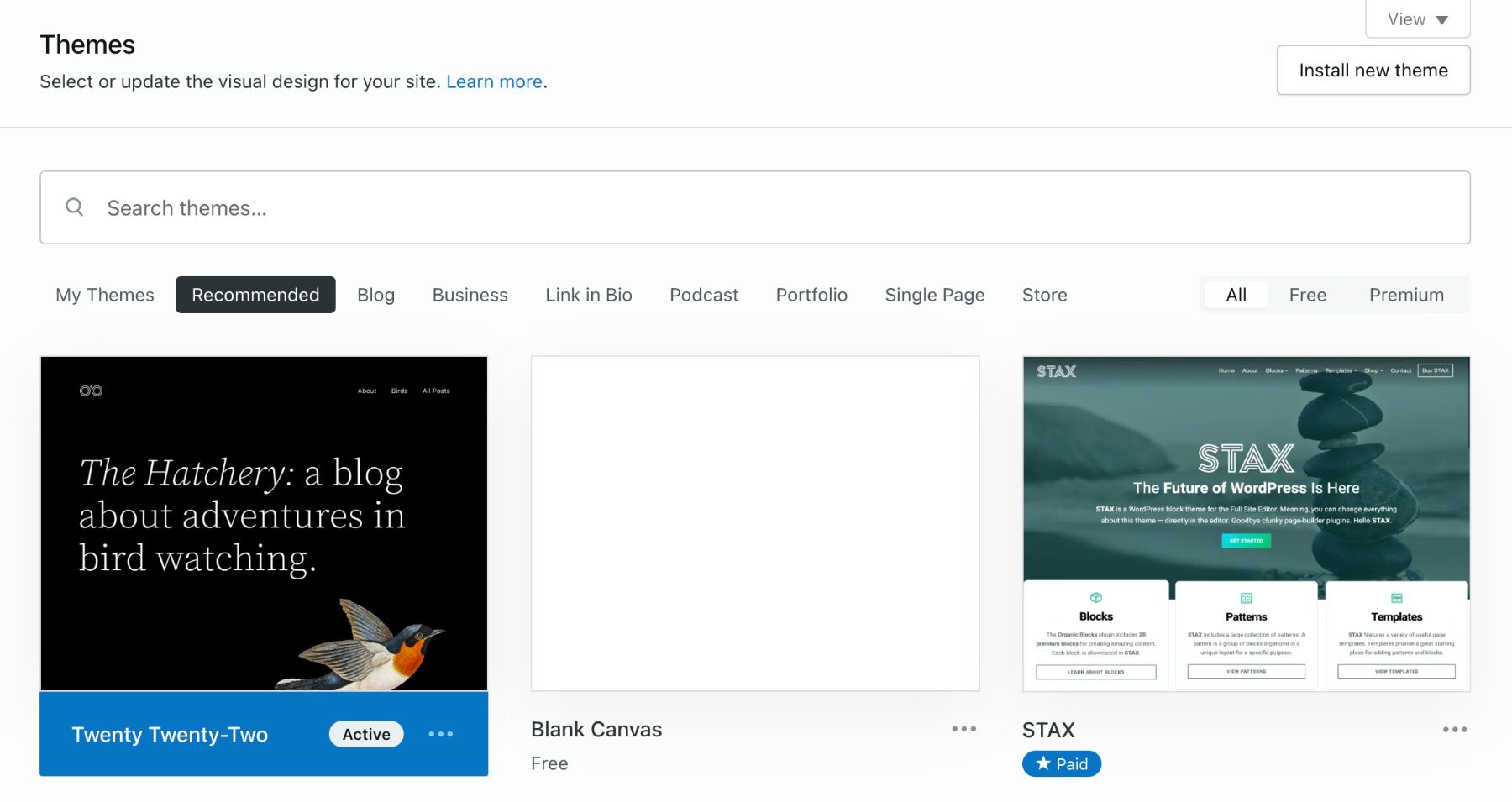
    WordPress Block Theme Repository

    WordPress Editing Tools

    WordPress offers several options to users for creating amazing pages. Built-in is what is known as the Gutenberg Editor. This editor lets you build pages with WordPress Blocks. These work particularly well if you are using a block-based theme for your website.

    There is also the Classic WordPress editing experience that uses the WYSIWYG editor or something like the Divi theme, which is a visual page-building theme built for designers.

    Creating a blog on WordPress is easy since the tools to do so come standard. Simply add a new Post to create your first blog. Your settings will determine what page the blog feed shows up on. Taxonomy is easily customizable by creating categories and assigning posts to them (and tags).

    Showit’s Ease of Use

    Showit employs a visual builder that is about as simple as they come. The page builder reminds us of the Wix editor but is more simple and pared down. This is a welcome change, as even Wix sites are getting confusing to build for the “average website DIYer.”

    Learning the platform is meant to be as easy as possible since it was built for creatives who don’t have coding skills. After creating a Showit account (they offer a 14-day trial), selecting a template, and inputting basic website information, you can start editing your site. On paid plans, they let you publish your website on a custom domain. The hosting, SSL, and site publishing are all done through Showit’s platform with minimal work from you. Showit employs a great onboarding flow for new customers. Prompts to how-to articles guide new users every step of the way.

    Showit Live Chat Support

    Showit’s Built-In Tools

    They offer this support over social channels and Live Chat in the editor itself. Their support team is on the smaller side, and sometimes that means that your chat question can go unanswered for up to one business day.

    Showit has built-in tools for SEO, including:

    • SEO Page Title
    • SEO Meta Description
    • Share Image

    Showit does not have advanced tools for SEO like readability scores, keyword density, or native support for Schema markup. But, it does allow adding custom Javascript, CSS, and HTML to individual pages and site-wide. This lets you use tools like Google Analytics, Search Console, and Optimize if you wish.

    One downside to Showit’s ease of use is that they recommend only using Google’s Chrome browser for full compatibility. While this is a popular browser, it is limiting for those using Firefox, Safari, and others. You will have to use Chrome to use Showit.

    Showit Section Layers

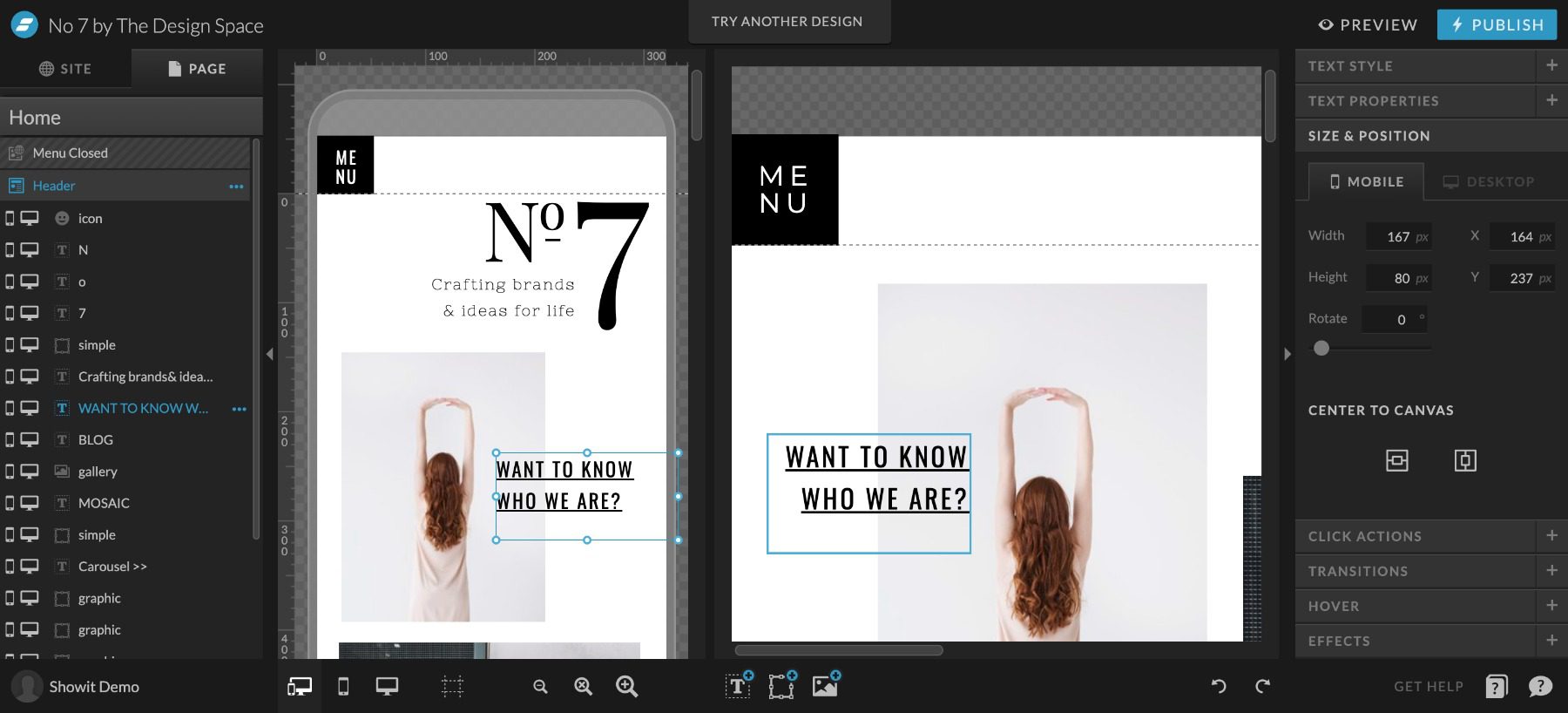
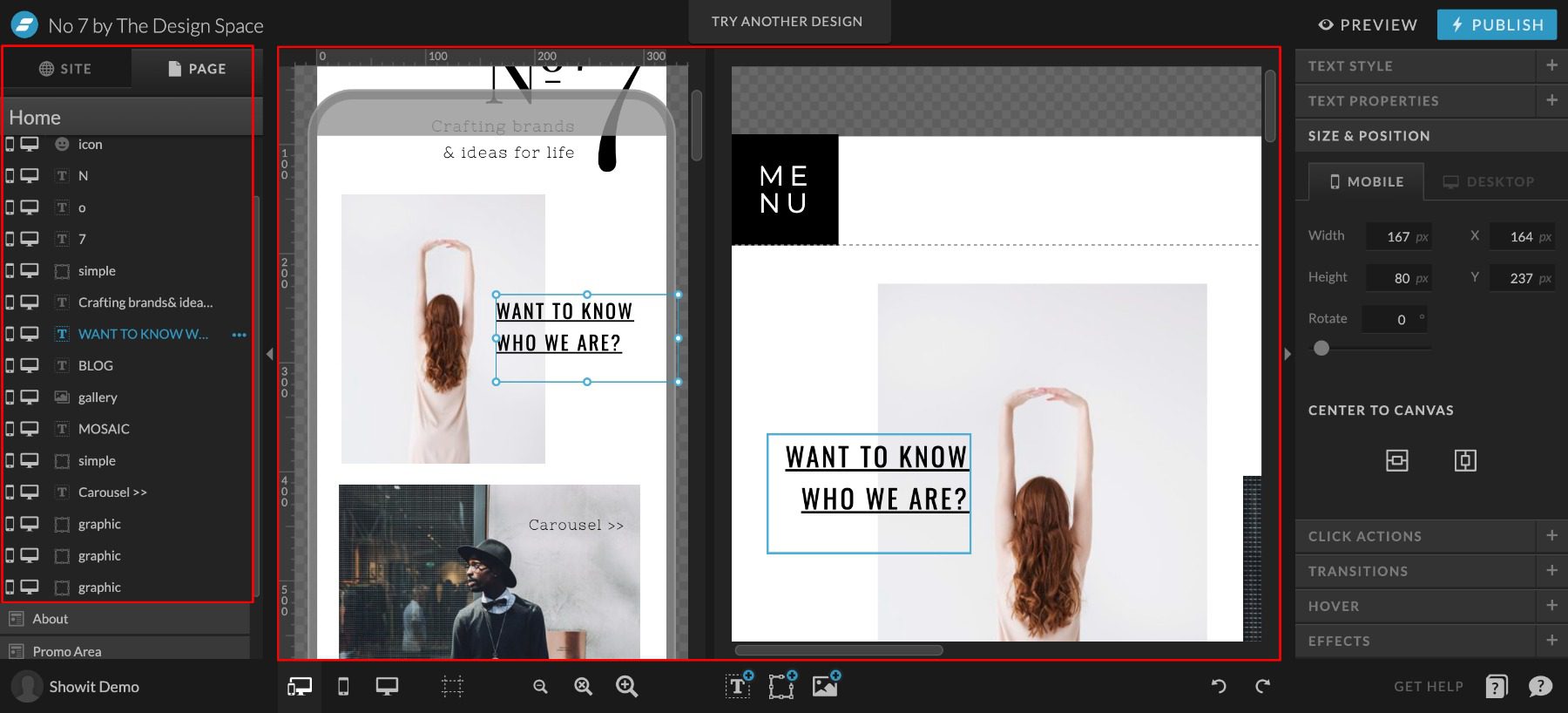
    Assuming you are on Google Chrome, editing the entire website is simple. Pages are easy to jump-to to edit page-wide settings. Once on a particular page, you can edit section settings or click on individual elements to edit or move them on the page. Elements within a section present themselves like layers in photoshop for an easy view of the content within each section. Showit lets you see both desktop and mobile versions of your page at once. It also sports a dark mode that many people will appreciate.

    WordPressWeebly
    Ease of UseFiguring out the interface can be a challenge and will definitely take some getting used to. 🥇 Winner
    It’s incredibly simple, but requires you to use Google Chrome.
    Choose WordPressChoose Showit

    WordPress vs. Showit: Customization

    Customization is an important aspect of any website platform. Usually, the deciding factor is going to be the extent of the web builder’s functionality. WordPress offers a wide variety of complex customization, while Showit offers less complexity to free up the design process.

    WordPress Website Customization

    Customization is a huge upside for WordPress. Many people think that WordPress is only customizable via custom code. While WordPress does offer a lot if you know CSS, PHP, or Javascript—you don’t need to plumb the depths of front-end web coding to get the benefits of WordPress’ customization.

    WordPress' Plugin Repository

    With WordPress, the primary mode of customization is through finding the right combination of themes and plugins. This requires research and testing, but you usually come out with a unique and custom solution. WordPress has a repository of an unthinkable 59K+ free plugins. Even more premium themes/plugins offer advanced features and helpful customer support.

    Popular WordPress Plugins and their Uses:

    The wonderful thing about WordPress is that every aspect is customizable. Your desire, skill, and imagination are the only limits.

    Showit Website Customization

    Showit is a website builder that offers an easy drag-and-drop interface. Its visual builder helps beginners create their own websites without any coding knowledge. In the eyes of many Showit users, this visual builder equals customization.

    Showit customization

    Customization with Showit is different than with WordPress. It is a closed system which means only official feature releases extend Showit’s website capabilities. The only caveat to that is with the highest-tiered pricing plan. This allows for an attached WordPress installation to the Showit website. On this pricing tier only, Showit will allow WordPress to extend the functionality of the WordPress side of the website. These plugins do not affect the main pages of the Showit website.

    WordPressWeebly
    Customization🥇 Winner
    Customization is where WordPress has no equals. It has tons of options regardless of technical experience.
    Showit seeks to be a simple solution—and because of that, they don’t offer a ton of customization
    Choose WordPressChoose Showit

    WordPress vs. Showit: Themes and Templates

    WordPress and Showit both have a deep cache of theme and template options. How they handle those are different, but both platforms help website creators start strong.

    WordPress Themes and Templates

    WordPress has traditionally relied on themes to mandate the look of a website but also the functionality. Currently, WordPress offers thousands of free themes that should get any WordPress user started on the right foot.

    WordPress Theme Repository - Free Themes

    For those wanting a more custom approach and a visual building UI, Page Building themes/plugins like Divi bring hundreds of templates into an endlessly customizable drag-and-drop interface. This brings the customization of WordPress to any easy-to-use design workflow.

    Showit Templates

    Showit Templates are purely used for page design. They do not bring any other functionality to Showit’s feature set. Showit templates give website creators a head start in the design process.

    Free Themes for Showit Websites

    This is helpful for people as they already know they don’t need a ton of features (Showit’s primary users are photographers). Since templates don’t add more features that require more training, they can simply pick a theme and start editing it to suit their needs.

    Showit Premium Themes - Expensive

    There are several free templates to choose from. There is also a robust ecosystem of paid templates for sale. Something that would shock an average WordPress user is the price tag on many of these premium templates. The average template in their store is well over $500. WordPress commonly has themes from $49 to $200, with most on the lower end.

    WordPressWeebly
    Themes and Templates🥇 Winner
    WordPress has thousands of themes and a ton of great free options.
    Showit has themes that provide aesthetics but no new functionality, plus they don’t have nearly as many free themes.
    Choose WordPressChoose Showit

    WordPress vs. Showit: Publishing Tools

    The publishing tools comparison gets murky here. Showit uses WordPress for the blogging infrastructure, which means that everything is the same when it comes to blogging features.

    There are unique traits to each outside these couple of similarities.

    WordPress Publishing Tools

    WordPress allows you to build and publish web pages and blog posts and has the ability to create custom post types.

    WordPress' Block Editor

    The default interface for creating content is the Block Editor. You build pages through intuitive blocks (think text block, image block, etc.) that stack to make your page’s content.

    WordPress' Classic Editor

    The Classic Editor is an option for those who prefer the tried and true content input interface. It features a strong WYSIWYG editor that used to be the staple of WordPress sites in the past.

    Divi Frontend Visual Editor for WordPress

    Page builders (like Divi) allow you to visually build your pages using a robust, design-first interface. Page Builders let you design with front-end visuals, so you know what you are designing as you go.

    Publishing is simple with any of these options. Once your content is ready for the world, you can change the post status from Draft to Publish. This publishes the page to your site for your visitors to see. User rules can be created to restrict some users from publishing content without being reviewed first—giving powerful editing features to teams of writers and designers.

    Showit Publishing Tools

    Showit famously has its visual builder that lets you see what you are designing as you design. It still offers a preview button that removes all the editing options to give you a clear view of the page you’ve created thus far. Publishing all site changes is easy with the Publish button in the top right-hand corner. With any mistakes, there are undo/redo buttons on the bottom right to quickly revert changes.

    Showit Vidual Editor in 3 Parts

    Showit has two separate editing interfaces. One for pages in the Showit editor and one for blog elements using WordPress.

    Showit Blog and Single Post Template Editor

    All designing for either blogs or pages happens with the Showit visual editor. For designing blogs, Showit ties design elements (featured image, author, post content, categories, etc.) to dynamic content from the blog (for blog and single post pages). This lets you design the post template in Showit (using placeholder content) and pull in blog post content from WordPress. Creating individual posts on Showit + WordPress is exactly like creating them in WordPress proper. When the post is published on WordPress, Showit simply grabs the post content and publishes it according to the design template.

    Including blogs, pages in Showit have to be designed twice. Once for desktop and once for mobile devices. This may add a little extra design time to your plate. But Showit has a side-by-side editing interface that allows you to see both designs at once, which does speed it up.

    WordPressWeebly
    Publishing Tools🥇 Winner
    WordPress was designed for blogging, and has all the tools needed for it.
    Showit has two separate editing interfaces. The side-by-side interface can be helpful, but overall leads to a slower design period.
    Choose WordPressChoose Showit

    WordPress vs. Showit: Security

    Security is a very relevant topic when considering a website platform. Website security needs have increased dramatically every year, with no indication that it will slow down. Understanding your platform will help to cover the bases as far as security goes.

    WordPress Security

    Security with WordPress can be tricky. Many opportunities exist to create custom security solutions within WordPress. That is because multiple layers need protection.

    For form and comment submissions, you can set up honey-pot and CAPTCHA plugins that limit the number of bot and spam submissions. This protects site viewers and administrators alike, who might have to wade through fake submissions to find the real ones. This is a problem no matter your website platform.

    WordPress Website Security

    Image by eamesBot / shutterstock.com

    On the more technical side, there are simple security solutions that cover most insecurities. These come in the form of WordPress security plugins. These free versions are usually good enough to cover most bases. These same plugins also come with Premium features that offer more hardened protection.

    Hosting level security is also worth looking into—including free CDN to protect against DDoS attacks. Free CDN options are a must if your host offers one. CDNs also offer premium packages that protect more and increase the efficiency of your website.

    As always, proper passwords and zero-trust solutions will help keep a website secure. There is no substitute for a strong password and two-factor confirmation.

    Showit Security

    Showit manages site security for hosted websites. This takes out the stress of finding and implementing custom solutions. This also means that you rely on Showit for complete protection.

    Showit provides and automatically sets up an SSL certificate with your published website. Also, none of the source codes is editable. They also maintain backups of websites for easy retrieval if something does go wrong.

    They offer additional managed security with Showit websites that have an attached WordPress blog.

    Showit remains pretty secure because it is a simple website builder. Outside of web forms, there is not a whole lot of customization. The main appeal is the simple page builder interface which creates a fairly static website in terms of user interaction. This keeps risk factors down, which is a net positive for simple websites.

    Password hygiene is very important with Showit as well. If you use leaked passwords, no matter the security level of Showit, bad actors can get in and do a world of damage in very little time.

    WordPressWeebly
    SecurityWordPress has a ton of security plugins available, practicing proper security is a must.🥇 Winner
    Showit manages site security so you don’t have to find your own solutions.
    Choose WordPressChoose Showit

    WordPress vs. Showit: E-commerce

    This section is a short comparison as Showit has no true, built-in eCommerce capabilities. Though, with their Showit + Advanced Blog package, they allow the use of WP plugins—including WooCommerce.

    E-commerce on WordPress

    WordPress Website Security

    WordPress’ eCommerce options are some of the most enticing features of the whole platform for many. WordPress boasts a diverse array of tools to enable creators, store owners, and service-based businesses to create ways to get paid online.

    WooCommerce is the total and expandable package for WordPress store owners. It boasts powerful plugins for marketing, merchandising, shipping, dropshipping, and custom checkout experiences.

    Other honorable mentions for WordPress e-commerce are Easy Digital Downloads, MemberPress, and LearnDash—depending on the business model at hand.

    Showit E-commerce

    E-commerce on Showit requires a third-party solution. This means that store functionality takes place on a different domain/website or through an embeddable code snippet that adds external functionality directly on the Showit website.

    Showit allows for inline custom code. This means that you have the pick-of-the-crop for an external payment solution.

    Shoprocket Embeddable Store

    Potential embeddable third-party eCommerce solutions to explore:

    With their highest paid tier, WordPress can be expanded to include WooCommerce. We’re going to still consider that 3rd party and not a native function of Showit, but the lines are admittingly blurred with their unique approach. We’d recommend that you go for a full WordPress website if you were wanting to use WooCommerce for your website, as Showit would complicate the proper setup and configuration of your store.

    WordPressWeebly
    E-Commerce🥇 Winner
    WooCommerce is a simple and cheap way to convert your WordPress site to an online store.
    Showit relies on expensive third-party solutions for e-commerce.
    Choose WordPressChoose Showit

    The Verdict

    Showit and WordPress are both powerful platforms that give their users the tools that they want. The tool sets are different but effective at what they were built to do.

    WordPressWeebly
    Ease of UseFiguring out the interface can be a challenge and will definitely take some getting used to. 🥇 Winner
    It’s incredibly simple, but requires you to use Google Chrome.
    Customization🥇 Winner
    Customization is where WordPress has no equals. It has tons of options regardless of technical experience.
    Showit seeks to be a simple solution—and because of that, they don’t offer a ton of customization
    Themes and Templates🥇 Winner
    WordPress has thousands of themes and a ton of great free options.
    Showit has themes that provide aesthetics but no new functionality, plus they don’t have nearly as many free themes.
    Publishing Tools🥇 Winner
    WordPress was designed for blogging, and has all the tools needed for it.
    Showit has two separate editing interfaces. The side-by-side interface can be helpful, but overall leads to a slower design period.
    SecurityWordPress has a ton of security plugins available, practicing proper security is a must.🥇 Winner
    Showit manages site security so you don’t have to find your own solutions.
    E-Commerce🥇 Winner
    WooCommerce is a simple and cheap way to convert your WordPress site to an online store.
    Showit relies on expensive third-party solutions for e-commerce.
    Choose WordPressChoose Showit

    It is nice seeing a non-WordPress solution still using part of WordPress in their technology. That gives credence to the capabilities of the platform and how it empowers website owners to express themselves and do business online.

    WordPress Deep Dive

    Are you curious to see how WordPress stacks up against its other biggest competitors? We did the hard work and compared WordPress vs. everything else so that you don’t have to! We compared WordPress vs. Web.com, and I think you’ll be interested in the results.

    If you’re looking for specific plugins to help WordPress become even more powerful, we recommend the following:

    Have you discovered any benefits of using Showit vs. WordPress? Let us know in the comments!

    The post WordPress vs Showit (2023) — Which One is Right For You? appeared first on Elegant Themes Blog.

    Go to source

  • WordPress vs GoDaddy Website Builder (2023) — Let’s Compare!

    If there is a more ubiquitous and well-known name on websites than GoDaddy, then it’s at the top of a very, very short list. GoDaddy has made a name for itself by being the Everything For Everybody web service, from web hosting to domain registration to website selling and now template-based, WYSIWYG website building. In comparison to that, WordPress is also filling that Everything for Everybody niche, but only in terms of website building. To help you decide which builder-centric web software you should use, we’re taking a look at WordPress vs the GoDaddy Website Builder, showing you the head-to-head comparisons of their most important features.

    WordPress vs GoDaddy Website Builder: Who Are They For?

    As we said above, both of these platforms do their very best to be everything for everyone. Not by being a one-size-fits-all solution but by having options available for whatever kind of site or service you might need. They handle this in very different ways, however.

    WordPress is free, open-source software that you can install on virtually any web host out there. Having evolved from its roots as blogging software, WP is now a full-fledged content management system (CMS). That means that any kind of website that you need to run with WordPress can be run with WordPress. From blogs, news sites, magazines, stores, portfolios, ticket vendors, event booking, and so much more. If you can conceive the site, WordPress has a way to do it.

    GoDaddy, on the other hand, isn’t solely based on the website itself but rather the entire suite of services anyone might need. Including the website software itself. Within the GoDaddy platform, you can buy a domain name, purchase hosting, and build your website with their site builder (which also then offers add-ons for functionality and utilities). Whatever particular service a user needs, they can find it at GoDaddy.

    But in terms of the site builders themselves, how does WordPress vs GoDaddy go?

    Ease of Use

    The first thing most people consider when looking at WordPress vs GoDaddy is how easy they are to use. The steeper the learning curve, the longer it takes to build a site, and the more frustrating it can be to use daily. While WordPress does have a slightly higher learning curve, it’s not enough to penalize it, and the entire head-to-head here seems comparable.

    WordPress

    Your first login to your WordPress website can be startling. The left side of your screen has a large menu of options, and the primary dashboard space is full of widgets with information and tools that you may not need now (or ever).

    wordpress vs godaddy website builder

    You may take a while It doesn’t take long to learn the software, as most things are laid out relatively intuitively. Posts, Pages, Plugins, etc., are easy to find and understand, but some features, such as Menus and Themes, are hidden away in submenus, and the difference between Settings, Tools, and the Theme Customizer isn’t documented anywhere, which causes headaches for many new users.

    The Page and Post editor itself is called Gutenberg. And it utilizes blocks of content (such as an image, gallery, or single paragraph) that you can manipulate individually. These blocks are the basis of site customization in WordPress now, and the themes that you purchase or grab from the WordPress.org theme repository are likely to support them for customization.

    wordpress vs godaddy website builder

    Using the editor is very simple once you get used to it. It may take a few Posts or Pages to feel it out. But the gist is that you click a + button that brings up a menu of available blocks. Then you simply add the content and place it in the document where you need it. Each block has a separate options panel you can edit. And you can even set some as global/reusable blocks that can be used to template posts and pages later on.

    You can learn more advanced site creation techniques such as taxonomies and custom post types, which do have a very steep learning curve initially. However, they are huge (yet advanced) factors in tweaking your WordPress site to be perfect. They are, though, in no way necessary to use or manage a WordPress site for years.

    GoDaddy Website Builder

    When looking at GoDaddy Website Builder vs WordPress, it has a very low learning curve. Which is great. But the reason the learning curve is so low is that the amount of customization you get is significantly lower than with WordPress. It lines up even with Wix or Squarespace in that regard.

    wordpress vs godaddy website builder first login

    The GoDaddy Website Builder starts you off with a 3-step introduction to how to use it.

    1. Choose a theme
    2. Click on any image or text to edit
    3. Publish your site

    And…it is about that easy. GoDaddy made their website builder for people who want a professional-looking site without needing a professional designer. You can choose from several different themes (really, templates) and then manipulate the elements involved exactly like you can in the WordPress block editor.

    godaddy theme gallery

    When the intro says to click an image or text to edit, it means it. You can either edit the page itself, typing in the front end of the site itself or the sidebar textbox. Whatever is more comfortable for you.

    wordpress vs godaddy website builder text edit

    Additionally, you can use the service formerly known as Over (now GoDaddy Studio) to edit photos and add text and other effects directly in the browser.

    wordpress vs godaddy website builder image editing

    This integration is fantastic, and if you haven’t tried the mobile app, we highly suggest it for quick image editing.

    You also get easy access to site analytics and tracking features under the settings gear, including the cookie warning for GDPR consent, Google Analytics, Facebook Pixel, and more.

    wordpress vs godaddy website builder basic options

    However, some of them, like Search Engine Optimization (SEO), only offer basic tools (naming the site and including a meta description. To take advantage of the more advanced features, you will pay for them individually as premium access.

    WordPressWeebly
    Ease of UseThe interface take a bit to get used to, but most will be acclimated in a matter of minutes.🥇 Winner
    It’s bare bones, and simple, made for people who don’t want to put a lot of time hand crafting their website.
    Choose WordPressChoose GoDaddy

    Which Platform is the Better E-commerce Solution?

    Setting up an e-commerce shop is a top priority for many website owners. Physical merch and digital goods are one of the major selling points (pun intended) for setting up a website in the first place. But how does WordPress vs GoDaddy’s website builder compare in this commonplace battleground? We think WordPress has a solid advantage here, and GoDaddy can’t quite compete.

    WordPress

    WooCommerce is WordPress’s premier e-commerce plugin. Free to download and start selling immediately, WooCommerce is amazingly extensible.

    wocommerce dashboard

    Being based on custom post types, adding products and variations in WooCommerce is as simple as creating a new post or page. The same process applies to everything in WordPress (pretty much).

    making a product page

    There is a huge ecosystem of plugins, add-ons, and extensions for WooCommerce to wade through, both free and premium. And while there is a learning curve to perfecting your WooCommerce shop, you can get it off the ground and sell items within just a few hours.

    The cost of running a WooCommerce store differs based on what you want, but we have a full rundown of what you can expect. For a fully featured store, stacked to the roof with all the features you could need, you’re running around $1,200 to $1,500 for the first year, with it recurring approximately $500 depending on your suite of extensions and hosting and other miscellaneous costs.

    GoDaddy

    E-commerce using the GoDaddy site builder is a bit different. From the outset, everything about the e-commerce options is premium. You don’t get the free options to launch a store and accept payments from the beginning as with WooCommerce.

    godaddy ecommerce

    For the first year, you can expect to pay $16.99 per month, and after that, it’s $24.99 per mo. That doesn’t quite even out to the base $500 we estimated you’d need for WooCommerce at its most expensive, but that is also only a single extra feature in GoDaddy, each of which you must purchase separately.

    E-Commerce

    WordPressWeebly
    E-Commerce🥇 Winner
    WooCommerce makes it simple, cheap, and efficient to create an online store.
    It has less customization features available and is much more expensive.
    Choose WordPressChoose GoDaddy

    Publishing Tools Breakdown

    WordPress has grown into a full CMS over the years, but at its heart, it is still a blogging program. Most features are tied into Posts and Pages. Though you can have an entirely custom, static site that never publishes any content to its feed. The sites you make using the GoDaddy site builder are generally not great at publishing regular content like a blog but rather information for products, brands, individuals, or companies. Both platforms can excel at creating easy, beautiful static pages, but if you want to write articles and post regular updates, WordPress is the clear victor.

    WordPress

    It should come as no surprise that WordPress is the clear victor here, either. The software is decades old and designed from the ground up with publishing of all kinds at its heart. The redesign of the post editor (the Gutenberg block editor that we showcased earlier) is a further indication that WP is staying true to its roots, giving you a universal tool to create and publish any kind of content you want, dynamic and updating or static.

    The WordPress editor has multiple templates to highlight audio, photos, links, videos, and more. You can use these templates on static Pages as well as Posts. And you can use that same editor to design your site as well as publish new content.

    Additionally, themes such as Divi exist to increase the options and functionality of WordPress publishing, giving you the ability to create entire templates for various types of posts or pages, depending on what categories, tags, and other criteria you may set.

    divi theme builder

    WordPress is built around this kind of extensibility and highlights what you can do with publishing on the platform. Whatever kind of publishing features you need, there are plugins for them. You can get editorial calendars, comments on posts, templates, themes, notifications, and more from a wide array of third-party developers.

    Regardless of what and how you want to publish, you’re going to be able to do it with WordPress. Because, at the end of the day, that’s what WordPress was built for.

    GoDaddy

    The GoDaddy website builder, on the other hand, was built for creating business sites. Or informational pages. Any site that is going to exist without needing a lot of maintenance after launch. Sites where the owner may come in occasionally to adjust information or add new sections (or delete them later). But not sites where new content is published daily.

    godaddy site builder

    You can create a blank page and add any elements you need, such as timers, text blocks, images, and so on. Or you can choose from their pre-designed templates for About pages, Galleries, Contact, Lists, and the storefront itself.

    Adding and publishing content is simple and easy. As we showed above, learning and using the software is quite straightforward. The main concern regarding the builder is that it’s not set up to easily create a blog. You can access the blogging dashboard from the menu in the top left, selecting My Blog.

    godaddy blog

    On the next page, you will see that your site isn’t set up for a blog. You have to create a new blog page before any of your content will be visible to the public.

    godaddy

    To do so, you must add a new blank page, then add a new blog section from the menu. Then navigate back to the dashboard and click Create Post to start. The editor itself is basic but functional. The elements you can work with are images, dividers, and text. You can categorize and add a featured image, too.

    godaddy builder blogs

    Using the GoDaddy blogging tool to create content isn’t particularly nice. It’s serviceable, and it does what it does without issue. It’s just nothing special. And that’s why it loses in this particular category. It doesn’t do anything noteworthy, but that may be fine for some people. If you need a simple website that displays information and/or sells products, the GoDaddy site builder works pretty well. But if you’re creating regular content for user consumption, it’s just not set up for that.

    WordPressWeebly
    Publishing🥇 Winner
    WordPress is the go to platform for bloggers and content creators.
    GoDaddy functions primarily as a place to display products or show off your brand rather than for bloggers.
    Choose WordPressChoose GoDaddy

    Final Verdict on WordPress vs GoDaddy

    WordPressWeebly
    Ease of UseThe interface take a bit to get used to, but most will be acclimated in a matter of minutes.🥇 Winner
    It’s bare bones, and simple, made for people who don’t want to put a lot of time hand crafting their website.
    E-Commerce🥇 Winner
    WooCommerce makes it simple, cheap, and efficient to create an online store.
    It has less customization features available and is much more expensive.
    Publishing🥇 Winner
    WordPress is the go to platform for bloggers and content creators.
    GoDaddy functions primarily as a place to display products or show off your brand rather than for bloggers.
    Choose WordPressChoose GoDaddy

    The GoDaddy site builder is a pretty nice piece of software, and it works quickly and smoothly. We didn’t run into any issues during the creative process that limited us in any way. But it’s very much not a publishing platform for regularly updated content. You can write updates and blogs and articles, but the feature seems like it was implemented as an afterthought. Creating a static site, however, is painless, and the templates look good enough to use on a public-facing site. Especially after you tweak the options and fine-tune the templates to your liking.

    WordPress, though, is the better platform for publishing content. After all, it’s a content publishing platform. It is a lot more than that, too. Using built-in and third-party tools, you can create any kind of static site you want, complete with landing pages, squeeze pages, special event registration, and more. It takes a little more time to learn WordPress than using the GoDaddy builder, but if you are creating a site that you intend to stick with for the long term, WP is just a stronger platform in nearly every way.

    WordPress Deep Dive

    Especially when you consider the quality of page builder plugins and themes that exist. The GoDaddy builder is fine, but some of the builders you can get with WP are phenomenal. If you are already using Godaddy and want to make the switch to WordPress, you’re in luck. It’s easy to move your website from the Godaddy Website Builder to WordPress in 6 simple steps.

    One more thing. Are you curious to see how WordPress stacks up against its other biggest competitors? We did the hard work and compared WordPress vs everything else so that you don’t have to! Most recently, we reviewed WordPress vs Duda, and I think you will be interested to see the results.

    If you’re looking for specific plugins to help WordPress become even more powerful, we recommend the following:

    What have been your experiences with WordPress vs the GoDaddy website builder?

    The post WordPress vs GoDaddy Website Builder (2023) — Let’s Compare! appeared first on Elegant Themes Blog.

    Go to source

  • WordCamp Asia 2023 Bangkok Roundup: From Thailand to the World

    After being postponed due to the pandemic, WordCamp Asia 2023 finally took place in Bangkok, Thailand, between the 17th and 19th of February 2023.;

    This first flagship WordCamp in Asia was attended by 1,299 people worldwide, and more than 3,000 people watched the live stream. The first was Contributor’s Day, while the last two days were for conferences.;

    It was our honor to participate in this event as one of the sponsors.

    Democratization of Publishing

    WordCamp’s Contributor Day is full of activity activities for new and experienced WordPress contributors to get their heads together. With all hands on deck, attendees contribute to improving various aspects of the open-source CMS.

    WordPress contributors working on their team project during WordCamp Asia 2023's Contributor Day

    The best part is that you don’t have to possess extensive coding knowledge to contribute to WordPress. All skills and experience levels are welcome.;

    There are various teams that people can contribute to. One is the Community team, which organizes meetups and WordCamps. Other teams include Polyglots, in charge of translating the platform, and Core, tasked with identifying bugs. There’s also the Photos team – a great starting point for anyone looking to contribute. Simply submit your high-quality photos to WordPress Photo Directory – just make sure they adhere to the guidelines!;

    During Contributor’s Day, attendees join a table of the team they’re interested in. There, they learn how they can help with the project. Once they find their footing, they can sign up and start contributing. Attendees who are unsure can join multiple tables – after all, WordCamp is a safe space to learn anything and everything WordPress.

    The communal contribution experience is one of the most empowering parts of WordCamp for many WordPress enthusiasts. It’s a chance for people to get to know folk from various industries and see how the WordPress community members support each other.

    Contributor Day is also the best opportunity to learn about WordPress’s mission, Democratize Publishing. It is all about making the internet a more open place. Matt Mullenweg, a co-founder of WordPress, stated that the mission could begin with the software itself, with the Four Freedoms principle as its foundation.

    The Many Facets of WordPress

    The two Conference Days saw more than 50 talks held in three halls. The topics ranged from technical subjects to mental health, emphasizing how you can look at WordPress from multiple angles.

    For example, the Leading with Cultural Intelligence session, presented by Petya Raykovska, touched upon the often-surprising multicultural dynamics of the global ecosystem. The talk addressed the challenges of communication strategies, including culture-based misunderstanding.;

    Petya Raykovska presenting a session about Cultural Intelligence-based leadership in WordCamp Asia 2023

    Petya, the table leader of the Polyglots team in WordCamp Asia 2023, stressed that the problem is not always about English proficiency. Instead, issues may arise from within the cultural subtext. This is also important to consider when improving WordPress – after all, contributors are located worldwide and in different time zones and work autonomously.

    Topher DeRosia‘s Success Stories of HeroPress talk was also memorable. Topher discussed his website, HeroPress, which publishes stories of people using WordPress to make an impact or improve their lives. These accounts let others see what they could do with the platform and spark conversations among people who can relate. This results in meaningful connections and employment opportunities.;

    The Future and Five for the Future

    The Five for the Future initiative launched in 2014, and it’s still going strong. It encourages individuals and organizations to contribute five percent of their resources to the platform’s growth.;

    During WordCamp Asia, Hari Shanker explained more about this initiative in his Ten Minutes on Five for the Future talk.

    For those still unsure how to start their WordPress contribution journey, sessions like Birgit Pauli-Haack‘s Case Study: A #nocode Contributor Journey on the WordPress Gutenberg GitHub Repo can be a great starting point. In this talk, Birgit points out how non-developers can also jump on the GitHub repository to help, comment on issues, and test upcoming changes.;

    Like all the previous WordCamps, you can watch the sessions and interviews with notable WordPress figures on WordCamp Asia’s live stream page and WordPress TV. This can be a great way to prepare for the next WordCamp Asia, which will be held in Taipei, Taiwan, in 2024.

    And if you’re still unsure whether you’ve got what it takes to contribute to WordPress, all you need to do is just start. The community will always have your back if you need help navigating through any issue or question.

    The post WordCamp Asia 2023 Bangkok Roundup: From Thailand to the World appeared first on Hostinger Blog.

    Go to source

  • WordPress 6.2 Openverse Integration Hotlinks Images, Contributors Propose Uploading to Media Library as a Better Default

    WordPress 6.2 is set to introduce an integration with Openverse that allows users to quickly insert free, openly-licensed media into their content. It was not readily apparent when the feature made its debut in version 15.1 of the Gutenberg plugin that the inserted images are hotlinked.

    WP Engine developer Phil Johnston brought up this issue in the #core-editor channel on WordPress Slack today. WordPress core contributor Paul Biron confirmed images are hotlinked when first inserted but can be added to the site’s Media Library using the “Upload” tool, which is located in the Image block toolbar after Openverse inserts the image.

    Hotlinking is generally considered a bad practice, as it uses another site’s bandwidth to display the asset. Hotlinked images can easily get renamed or removed from the source site, which can negatively impact the sites that are displaying them.

    WordPress core contributor Jeremy Herve opened a ticket yesterday with concerns about the hotlinking and suggested it would be better to upload the images by default.

    “I would suggest uploading the image to one’s site once picked and inserted,” Herve said. “This way it would remain available on the site, whatever may happen to the service or the original image. Of course, the image attribution should remain in the caption.”

    Johnston also suggested hotlinking the images might be a privacy concern if it allows the host to gather data about the device loading the image.

    WordPress may end up changing the default behavior for Openverse inserts, but in the meantime, users should be aware of how this feature works and where to find the Upload tool.

    Go to source

  • WordPress vs. Duda (2023) — Which One Should You Choose?

    WordPress began as a popular blogging platform and has since grown into a full-scale, open-source content management system (CMS). It’s among the top web platforms available online today and the primary choice of millions of website owners. The Duda website builder is a user-friendly, drag-and-drop website builder that tackles the heavy lifting for you. In this post, we’ll be comparing WordPress vs. Duda website builder to see which platform is right for you.

    WordPress vs. Duda Website Builder: Who are They For?

    WordPress and Duda have similar end products: powerful, functional websites that business owners and individuals can use to establish their online presence. Let’s break down who each platform works best for.

    Before we jump into the comparison, keep in mind that we’re going to focus on WordPress.org rather than .com. This article explains the difference between the two platforms in detail. At Elegant Themes, we believe that the .org version of WordPress is the stronger product. When considering a self-hosted website that’s versatile and highly customizable, we believe most site owners choose .org.

    WordPress

    Wordpress website

    WordPress is a web design platform that supports a wide range of website types and purposes. From basic, pre-designed themes to completely custom websites, the possibilities are nearly endless. Non-coders can jump right in by using the Gutenberg block editor, WordPress’ passable page builder. On the other hand, web developers have the WP codebase at their disposal.

    WordPress supports the development and use of third-party plugins and themes, which means additional functionality for your site. Users with any level of experience can find and activate plugins to power up their sites. Domain registration and hosting are separate from the WordPress platform, so users are responsible for finding their own hosting and domain name services. If you choose to build on WordPress, you’ll also be responsible for the site configuration.

    Duda Website Builder

    Duda website builder is a software-as-a-service (SaaS) platform that allows users to build their websites right inside their browsers. Like platforms such as Ghost and Squarespace, it’s a solid choice for users who have little to no website design or coding experience, yet it yields professional results.

    It features a working preview as well as a drag-and-drop interface that makes it easy to edit your site. For non-developers or people who are new to building a site, Duda is a great option.

    Duda website

    Duda users who do have coding experience can access the source code of their sites to make tweaks. As a result, this could be particularly appealing to a site owner who wants the ability to tweak code if they want to. Even if a user doesn’t want to handle the bulk of the coding work, they might just want the option.

    SaaS platforms and agencies use the Duda website builder, in part, due to its versatility and ease of use. The platform also offers Agency, and Custom plans so that businesses can host multiple client sites in one place. Agile, fast-paced businesses and freelancers may find that the platform’s ease of use lends itself to quick turnarounds for clients who need a website built yesterday.

    Pricing Comparison

    Like most site-building platforms, WordPress and Duda have their respective costs. Let’s dig into those.

    WordPress

    Theoretically, WordPress is free — except it’s not. While the software is open-source and downloadable, and while you can install, host, and manage it yourself, there are other costs involved in building a powerful, custom WordPress website. Hosting your WordPress site, purchasing and renewing your domain name annually, paying for a custom theme, and investing in the proper licensing and memberships all add up.

    In short, there are many underlying costs associated with WordPress that aren’t addressed in its marketing. These costs will vary depending on your website–think of them as building blocks. You’ll need to spend some time researching your options and your potential costs.

    For example, you might have to pay per site per year for some plugins and themes. Alternatively, at Elegant Themes, we offer a one-time lifetime fee option for Divi. You could find yourself paying $10 per year for a domain, $5 per year for hosting fees, or piecemeal fees for themes and plugins. Managed hosting, security platforms, and even eCommerce integrations like WooCommerce or Shopify can quickly add up.

    Duda Website Builder

    Duda website builder Basic plans start at $14 per month. There are also higher-tier plans, including Team, Agency, and Custom. This pricing includes site hosting on AWS but doesn’t include a domain name. However, through Duda’s integrations with Google and Hover, you can purchase a custom domain name easily for an additional fee.

    Duda pricing

    WordPressWeebly
    Pricing🥇 Winner
    WordPress is as expensive and expansive as you want it to be.
    Duda is a relatively cheap option, but can’t compete with free.
    Choose WordPressChoose Duda

    Which Platform is Easier to Use?

    If you’re less concerned about pricing and more interested in how your day-to-day life will be with WordPress vs. Duda, we’ve got you.

    WordPress

    WordPress has a bit of a learning curve when it comes to the website’s backend. It can take a little time to learn your way around. Building the actual site, and tweaking a theme, are where you’ll likely run into the largest time (and possibly financial) investment.

    wordpress dashboard

    The vast range of options available to WordPress users is nothing short of overwhelming for many of us. Each website tool you install and set up will have its learning curve. However, we tend to feel that the biggest draw for WordPress vs. Duda website builder is the ability to customize every single line of code. Designers and developers can make a WordPress site anything they want it to be just by digging into the codebase.

    But that’s a massive barrier to entry for most website owners — especially if you’re new. Not everyone has the time or desire to learn how to tweak PHP or JavaScript. While the available plugins and widgets can help ease some of those complications, it still takes time to figure out which tools you need for your particular skill set and budget.

    Duda Website Builder

    The Duda website builder is built to showcase its range of tools and options at a glance. In addition to a full-screen preview, which users can toggle between desktop, tablet, and mobile phone, it features a static navigation menu that allows you to move from one feature to another easily. Users can integrate widgets, a blog, an eCommerce store, and even collect content and information from site visitors.

    Duda dashboard

    Adding pages, images, and sections to your site design is straightforward. Organizing pages and popups are easy and are reflected in the navigation menu. There is also a wide range of apps you can integrate into your site to further customize it.

    duda mobile editor

    Essentially, Duda appears to be a platform that makes building a powerful website easy for the non-developer. At the same time, it allows users with coding experience to access and tweak the source code. This option offers further customizability. The learning curve for Duda is pretty low, so you can dive in and get to work quickly.

    WordPressWeebly
    Ease of UseWordPress can take some time to learn, plus the seemingly endless features can overwhelm. 🥇 Winner
    Duda makes it easy to create a website, regardless of skill level.
    Choose WordPressChoose Duda

    Customization Comparison

    Both WordPress and Duda allow for varying levels of customization, depending on the type of site you build.

    WordPress

    With a little (or a lot) of code — and maybe an assist from a web developer — WordPress users can get a fully customizable site that does exactly what they both want and need it to do. With the ability to integrate a variety of plugins, widgets, and themes, you can tweak and experiment until your site supports all the functions you need.

    On the other hand, you’ll need to keep an eye on your site features and make sure they’re up to date — both for security and aesthetic purposes. Updating a WordPress theme has been known to break websites in the past, so you have to be vigilant about making regular site backups. The same can be said for plugins and even WordPress Core itself. Unless you’re on great managed WordPress hosting such as Flywheel or Cloudways, updating is something not to be taken lightly.

    Duda Website Builder

    Duda website builder is a bit more limited in terms of customizing the look and feel of your site. Users choose from a range of pre-made templates, which can then be customized within the browser-based site builder. To a certain degree, you can tweak the source code, too, but that’s not Duda’s strong suit.

    However, as far as functionality is concerned, Duda features tools and app integrations to help businesses of all sizes reach their intended audiences. With speedy, reliable server hosting on AWS and the ability to build and run an eCommerce store on the platform, Duda goes beyond functioning as a simple drag-and-drop builder.

    WordPressWeebly
    Customization🥇 Winner
    WordPress is fully customizable and is easily malleable to the the needs of a developer.
    Duda is a bit more limited, with its primary focus being on simplicity.
    Choose WordPressChoose Duda

    Themes and Templates

    Many website owners are drawn to WordPress and Duda because both platforms offer tools that make it easy to build beautiful, functional websites with no knowledge of code or design.

    WordPress

    WordPress page-builders and themes, including Divi, are equipped with a range of professionally-designed layouts that users can import. Themes make up the foundation of WordPress websites and can be blank slates or fully pre-designed layouts for specific types of users.

    Themes page

    In theory, themes should be straightforward to install and set up. However, it’s not unusual for WordPress site owners to need help from a website developer to tweak the finer points of the code. Especially if they’re not developers themselves.

    Duda Website Builder

    Duda website builder includes built-in, pre-made templates. When you set up your initial site, you can tell the builder what type of site you’re creating. Users can choose between a portfolio, landing page, business site, lifestyle site, or online store or say they’re just browsing. Duda will then populate a selection of templates based on your site type.

    Duda templates

    From there, the selection process is super straightforward. Simply select the template you want to start from, and Duda will load it in the browser-based site builder. Then, you can start making tweaks.

    The installation and use of themes seem pretty comparable, but you can dig into the theming more in WordPress. With that said, however, if you don’t want to dig into the theme’s code and expand the feature set, Duda’s options are just as beautiful (if not more so) as many out-of-the-box WordPress options.

    WordPressWeebly
    Themes and Templates🏳️Draw
    WordPress has thousands of templates and themes to dig into.
    🏳️Draw
    Duda also comes with a lot of themes straight out of the box.
    Choose WordPressChoose Duda

    Publishing Tool Comparison

    Both platforms feature publishing tools that allow users to create blog posts. Let’s compare WordPress vs Duda to determine which comes out on top.

    WordPress

    WordPress makes it super easy for site owners to create and publish SEO-optimized blog posts. Its publishing tools are straightforward, whether you’re using the Classic Editor or the new Block Editor. Essentially, both editors function almost like word processors with a few extra bells and whistles. If you can use Microsoft Word, for instance, you should be able to dive in and learn the basics of publishing on WordPress without a lot of fuss.

    Here’s a look at the Classic Editor:

    classic editor

    And here’s what the Block Editor looks like:

    Block editor

    You can install and activate plugins that make the publishing process easier and more effective. For example, plugins such as Rank Math help users optimize both readability, on-page SEO, as well as keyword optimization.

    WordPress was built as a blogging platform initially, so it makes sense for its publishing environment to be robust and easy to use.

    Duda Website Builder

    From Duda’s left-hand navigation menu, you can click the Blog button to access posts and drafts. There will be several pre-loaded example posts in the blog manager that you can click into and poke around just to get a feel for the platform.

    Editing page

    When you open an existing blog post, you’ll edit it right there on the page. Here’s what it looks like:

    Duda editing page

    It is a pretty basic system, but it’s hard to compete with WordPress’ writing experience and tools. If blogging is just something you want to do occasionally, Duda will be fine. But if your primary content is delivered via publishing, it may not be as powerful as you need.

    WordPressWeebly
    Publishing Tools🥇 Winner
    It’s hard to compete with WordPress when it comes to blogging, it’s been the top dog for years now.
    Duda’s publishing tools are passable, but not as intuitive as WordPress’.
    Choose WordPressChoose Duda

    What About Security Features?

    Wondering about site security on WordPress vs. Duda website builder? Wonder no more.

    WordPress

    WordPress website security is largely based on the website host you select and the security measures you choose to implement. For example, you might choose to use a free SSL certificate and stop there. On the other hand, you might want to consider a more robust security plugin such as Sucuri, or even a suite of security tools if you handle sensitive user information or need to comply with HIPAA.

    In terms of WordPress itself, developers regularly release security updates and updated versions of the software. Themes are designed for backward compatibility so users can keep their sites up-to-date in terms of security. Theoretically, this is meant to prevent site loss and broken themes when updating. However, we highly recommend backing up your website before you run any security updates.

    Duda Website Builder

    Duda websites come with a free SSL certificate and are hosted on Amazon’s AWS servers for an added layer of security. Users can easily back up their sites whenever needed. Additionally, Duda offers a free global CDN so that your site is a bit more secure than having users connect directly to your server.

    While you can’t control the security like you can on WordPress, the Duda platform handles that for you so that you can focus on what you’re best at. It’s secure, and you don’t have to make it that way yourself.

    WordPressWeebly
    SecurityWordPress has a ton of security extensions and plugins available, but you have to take time to set them up.🥇 Winner
    Duda comes built with SSL certificate hosting and handles the security for you.
    Choose WordPressChoose Duda

    Which Platform Stands Out For E-commerce?

    Both WordPress and Duda website builders offer eCommerce store integrations for site owners.

    WordPress

    WordPress supports several different eCommerce plugins and integrations, including WooCommerce and Shopify. Like so many other WordPress features, setting up an online store is a plug-and-play scenario. You’ll have to shop around for the right platform whose features fit your needs, then do the work to integrate it and get it working properly.
    Keep in mind that costs for running an eCommerce store via WordPress will vary, just like building and running the site itself.

    Duda Website Builder

    Duda website builder includes an eCommerce platform. Site owners who want to start an online store via Duda have access to omnichannel eCommerce, so all their platforms are synced in one spot. Duda’s eCommerce platform is also SEO-optimized and built for maximum conversion rates. Additionally, site owners can white-label their eCommerce branding.

    A standard Duda eCommerce store starts at $7.25 per month, with higher tiers based on your needs.

    WordPressWeebly
    eCommerceWooCommerce is a great free plugin for WordPress, but actual pricing may vary depending on what functions you wish to implement.🥇 Winner
    Duda comes with an eCommerce platform that is more than suitable for most patrons
    Choose WordPressChoose Duda

    WordPress vs Duda: Making A Choice

    Now that you understand some of the key differences between WordPress vs. Duda website builders, which one would you choose? Why or why not? Do you prefer a different web design platform altogether? Drop us a comment, and let us know what you think.

    WordPressWeebly
    Pricing🥇 Winner
    WordPress is as expensive and expansive as you want it to be.
    Duda is a relatively cheap option, but can’t compete with free.
    Ease of UseWordPress can take some time to learn, plus the seemingly endless features can overwhelm.🥇 Winner
    Duda makes it easy to create a website, regardless of skill level.
    Customization🥇 Winner
    WordPress is fully customizable and is easily malleable to the the needs of a developer.
    Duda is a bit more limited, with its primary focus being on simplicity.
    Themes and Templates🏳️Draw
    WordPress has thousands of templates and themes to dig into.
    🏳️Draw
    Duda also comes with a lot of themes straight out of the box.
    Publishing Tools🥇 Winner
    It’s hard to compete with WordPress when it comes to blogging, it’s been the top dog for years now.
    Duda’s publishing tools are passable, but not as intuitive as WordPress’.
    SecurityWordPress has a ton of security extensions and plugins available, but you have to take time to set them up.🥇 Winner
    Duda comes built with SSL certificate hosting and handles the security for you.
    eCommerceWooCommerce is a great free plugin for WordPress, but actual pricing may vary depending on what functions you wish to implement.🥇 Winner
    Duda comes with an eCommerce platform that is more than suitable for most patrons
    Choose WordPressChoose Duda

    WordPress Deep Dive

    Before you make your final decision on your website platform…are you curious to see how WordPress stacks up against its other biggest competitors? We did the hard work and compared WordPress vs. everything else so that you don’t have to! We reviewed WordPress vs. HubSpot CMS, and I think you will be interested to see the results.

    If you’re looking for specific plugins to help WordPress become even more powerful, we recommend the following:

    The post WordPress vs. Duda (2023) — Which One Should You Choose? appeared first on Elegant Themes Blog.

    Go to source

  • WordPress vs Google Sites (2023) — Comparing The Differences

    Interestingly enough, Google has two different website hosting options. Blogger, which is a direct competitor to WordPress.com more than WordPress.org, is focused on publishing content, and Google Sites, which is a more direct alternative to sites such as Wix and WordPress.org, where you build a website based on a project or a portfolio or even an event. When looking at WordPress vs Google Sites, we have to take into account that Sites is definitely an alternative to the CMS (content management system) elements you get in WordPress.

    WordPress hosts are plentiful, but there are a few, such as Cloudways and SiteGround, that offer awesome features at a very reasonable price. In this article, we’ll take a head-to-head look at WordPress and Google Sites, breaking down their intended users, customization features, ease of use, SEO, flexibility, and extensibility.

    WordPress vs Google Sites: Who Are They For?

    WordPress is for everyone. Really. It has elements that work for just about everybody with every kind of site. If you need an event site, there are events calendar plugins that help you run it. If you want a blog site, that’s what the platform is based on. E-commerce? WooCommerce has you covered. As the platform has evolved into a full content management system, so too has the demographic the software can appeal to. You can run simple, single-page websites as well as major sites with hundreds/thousands of pages that get millions of hits. It scales well, too.

    However, the downside to this is that it requires a bit of initial learning from users and then tweaking to make sure that the site looks and performs the way you want it to.

    Google Sites, too, is aimed at everyone simply by the fact that it’s an included part of the Google family of apps. However, rather than being aimed at everyone for everything, it’s aimed at everyone who needs a simple website for anything at all. When you set things up initially, you will choose a template and type of site (or a blank one), which then turns into a simple front-end page builder where you enter your own information.

    The customization and flexibility in Google Sites vs. that from WordPress aren’t great. However, the simplicity and lightweight efficiency that comes from the service make it a great option for anyone who needs a one-off website or a simple, static web presence.

    Which Is Best For Customization?

    One of the elements that nearly every website owner gets caught up with is site customization. Finding just the right layout, the right design, and the right color palette is imperative to website success. However, depth and ease of customization vary by platform, and the need for those varies from site to site. Both WordPress and Google Sites offer customization only in different ways. Depending on the kind of site you’re building, either one could fit the bill.

    WordPress

    WordPress is all about customization. With its entire structure being based on extensibility through plugins and themes, you really have endless choices for your sites. That can be a little overwhelming, too. Is Divi the best theme? What are the best page builder and SEO plugins? Which security plugin works the best? Do I even need one?

    plugins

    There are so many options for every single kind of feature that you may have a hard time choosing. That’s okay. While there is definitely a learning curve here, it’s hard to make a bad decision. The cream definitely rises to the top on the WordPress.org plugin and theme repositories, and anything you need to add to your site should be able to be found at the top of most simple searches.

    If you’re a coder, you can dig in even further by altering and adding to the PHP, HTML, and JavaScript in the WP core files. If not, again…don’t worry. That’s what plugin and theme developers do. No matter what you want your site to look like, there’s a tool for that. And no matter what you want your site to do, there’s a tool for that, too.

    It just might take a little research and trial and error to get the exact right fit for what you’re trying to make.

    Google Sites

    Sites, on the other hand, is a straightforward tool that doesn’t have nearly the depth of customization that WordPress does. What it does offer in customization, though, is simplicity and ease of use. If you know what kind of site you’re going to build, you have a choice of templates for your site. They are basic foundations but professionally designed.

    sites templates

    Whichever one you choose, the customization options are directly in front of you. A page builder loads and all of the options that you get are visible from the start. In general, these are aesthetic and design choices, meaning that you won’t be able to add features and utilities as you do with WordPress.

    google sites event page

    As you can see in the image above, the interface is clean and easy to use. You can add text boxes, dividers, buttons, images, and so on. Each of these has its own customization options. Some, such as text boxes, only have basic formatting (bold, italics, alignment, etc.), while others, like the header and navigation, get a more diverse range.

    google sites vs wordpress

    You can add Google Analytics for tracking, a custom domain (from anywhere and not just from Google Domains), and various brand logos, etc. Additionally, you simply drag and drop different elements along the page to design them. Google Sites provides a grid for you to follow. So while you can’t place them anywhere on the page, Sites makes sure you can place them where it works.

    WordPressGoogle
    Customization🥇 Winner
    WordPress is designed to be customizable. It’s expansive plugin library has something for almost everyone.
    Google sites is a bare bones platform, making it simple to use but difficult to customize.
    Choose WordPressChoose Google

    Which Platform Is Easier To Use?

    When picking a website platform, your level of expertise matters. If you’re a new site owner, Google Sites’ simplicity is probably going to be a big draw over having to learn WordPress. WordPress has made large strides in making itself more new-user-friendly than ever. But it has plenty of holdovers from the old days that let the platform’s age shine through.

    WordPress

    Simply logging in and looking at the WordPress dashboard is a lot for a new user. Seeing all the menu items in the sidebar and the widgets on the main page is a ton of information to absorb. Often, this alone can paralyze a user because they may not know where to even begin.

    wordpress dashboard vs google sites

    Using WordPress itself isn’t that hard. In fact, it’s pretty intuitive. Once you learn how. Learning where the options and settings are located can take some time. The learning curve is moderately steep, especially when you consider the number of customization options, as we mentioned above. Adding in and customizing each theme is different, as are plugins.

    However, outside of those, the actual site editing and post creation are pretty easy. Especially with the new Gutenberg editor introduced in WordPress 5.0.

    wordpress block editor

    Users can add any blocks or elements they want, such as row blocks, stack blocks, and even block patterns. Plus, you can adjust the options for each one individually and publish with all the information right at their fingertips. Context menus are easy to navigate. And a simple search of the blocks when you add them gets you right to where you need to be quickly.

    As we said, WordPress itself is fairly easy to use. Once you learn it. Before that, you may feel overwhelmed. But the learning curve is definitely worth the power that you get from the platform.

    Google Sites

    On the other hand, Google Sites has almost no learning curve. It’s almost a flat line. No curve at all, really. Google Sites is simple and easy to use from out of the gate. The downside to having such a flat learning curve is that the power and overall options that you get are significantly limited. Especially when looking at Google Sites vs. WordPress.

    google sites vs wordpress ease of use

    Using Google Sites is a cinch. To the right, you have a sidebar with simple options such as New Page or New Link, or Make Homepage. You can make any page a subpage of any other, remove it from the header navigation, or make a copy of it.

    In addition, the elements have a simple, radial context menu with all the options available if you double-click on them. It pops up, letting you upload media, add Google Drive media, embed, adjust text, and add images.

    All of this is incredibly easy to use. And it works intuitively that you probably won’t need documentation to figure it out. Building and editing on Google Sites with no previous knowledge of the platform might have been the most intuitive experience of any interface we’ve used.

    If you’re looking for a website that you can create, edit, and launch, kind of like making and publishing a slideshow deck, Google Sites is fantastic.

    WordPressGoogle
    Ease of UseWordPress takes a bit of time to get used to, do to the wide range of functions available. 🥇 Winner
    Google sites is incredibly straightforward and easy to use. It is limited in terms of options though.
    Choose WordPressChoose Google

    SEO, Flexibility, and Extensibility

    Digging in under the hood of these platforms, we want to take a look at what they offer in terms of everyday use and utility for site owners. Can your site be expanded, and how can you optimize it for search rankings? Let’s take a look at how WordPress and Google Sites stack up to one another.

    WordPress

    As we mentioned above, WordPress is customizable and flexible enough to run any kind of website you need. From e-commerce to a blog to a learning management system (LMS) or membership site. The tools available within the CMS are powerful, and with the plugin ecosystem, the options are limitless.

    For SEO, WordPress can’t be beaten. Yoast SEO, Rank Math, Squirrly, and others provide absolutely amazing options so that you can edit your metadata, schema, and HTML site maps to get the best results from the web crawlers. If you’re making regular content that needs updating and adjustment to place high in the search rankings for organic discovery, WordPress is the clear winner.

    Google Sites

    On Google Sites, you’re limited to a powerful, static site builder without a plugin ecosystem. You do, however, but you do have access to the entire Google Suite of products that tie directly into it. Google Sites itself can’t be used as a publishing platform for a blog, but it can be linked to your Blogger account. You can’t run an e-commerce shop from Google Sites, but you can embed the code for a Shopify page in there. For straightforward websites, Google Sites is great. If you need something more complicated and feature-rich, look elsewhere.

    In terms of SEO, Google Sites is a letdown. Despite being a Google product, the metadata and SEO options are simply not there. If you are going to rely on organic search as the lifeblood of your site, Google Sites isn’t the platform for you. However, the sites you make are amazing for pages that will be distributed to a limited audience and/or direct traffic. Internal company websites, community updates, information, and even product or brand information pages are a perfect fit for Google Sites.

    WordPressGoogle
    SEO, Flexibility, Extensibility🥇 Winner
    WordPress has solutions for all sorts of plugins to maximize SEO, and provide your website with any tools it needs.
    Google is limited to a static site builder and G-Suite products.
    Choose WordPressChoose Google

    WordPress vs Google Sites: Which One Is Better?

    Both WordPress and Google Sites are targeting two entirely different audiences. Here’s a rundown of how the features we have compared so far stack up.

    WordPressGoogle
    Customization🥇 Winner
    WordPress is designed to be customizable. It’s expansive plugin library has something for almost everyone.
    Google sites is a bare bones platform, making it simple to use but difficult to customize.
    Ease of UseWordPress takes a bit of time to get used to, do to the wide range of functions available.🥇 Winner
    Google sites is incredibly straightforward and easy to use. It is limited in terms of options though.
    SEO, Flexibility, Extensibility🥇 Winner
    WordPress has solutions for all sorts of plugins to maximize SEO, and provide your website with any tools it needs.
    Google is limited to a static site builder and G-Suite products.
    Choose WordPressChoose Google

    WordPress is Best For Most People

    WordPress is the tool for most people simply because it’s a more robust platform that has more extensibility through plugins and themes. You can do anything you want with WordPress, but you have to give yourself the time to learn it. Then tweak it. Then set it up. Whether you’re a coder or a new website owner, you can absolutely get WordPress to do what you need. The tools are out there, and the support and documentation are, too. You have to put in the work to learn it and make the jack-of-all-trades do the work you need it to do.

    Google Sites is Good for Quick Sites

    Google Sites is an amazing platform for simple sites that need to be up quickly without any hassle. If you have no website experience whatsoever, Google Sites is perfect because it is intuitive and easy to use. You can have a website set up in well under an hour, even if you have never done anything like that before. The downside is that it’s not a very extensible or powerful platform, and you can hit its limitations quickly if you want to grow the site into something more grandiose. However, for what it is and who it targets, Google Sites is a strong tool that does exactly what it means to.

    Are There Other Choices To Consider?

    When it comes to building a website, there is no shortage of choices. We have reviewed and compared just about every website building solution under the sun and summarized our findings here. Recently we reviewed WordPress vs Blogger, which is worth a look.

    The Best Way To Get Started With WordPress

    Are you thinking about using WordPress? We think that’s a great choice! WordPress gives you the freedom to create just about anything. But where do you even start? Here’s a quick guide:

    1. Hosting: You’ll want a great host, that’s key. We recommend SiteGround and Pressable.
    2. Theme: We recommend our very own Divi Theme. It’s the most popular theme in the world for a reason!
    3. Security: Keep your website secure with iThemes Security.
    4. SEO: Make sure your website is optimized for search engines using Rank Math.
    5. Backups: In case disaster strikes, you’ll want to use BackupBuddy to keep regular backups of your data.
    6. Performance: Nothing is worse than a slow website. Keep your website running fast with WP Rocket.

    That’s it! You have assembled the ultimate WordPress toolkit and you are ready to build a successful website.

    The post WordPress vs Google Sites (2023) — Comparing The Differences appeared first on Elegant Themes Blog.

    Go to source